

Adobe Portfolio is a website builder for showing your photography portfolio. It is most useful when you want a focused gallery and already work with Adobe Lightroom.
Its main limits are flexibility and the extra steps needed to maintain imported Lightroom albums. If your priority is an online shop or a blog, check those requirements before choosing it.
This review explains the features and limitations. The original screenshots show an earlier interface. Feature details below are checked against Adobe’s current help pages.

How to Build an Adobe Portfolio Website
Start with a small selection of your strongest photographs. Decide whether visitors need a single introduction page or several galleries. A clear structure matters more than adding every image you have.
Adobe’s getting-started guide outlines this process:
- Open Adobe Portfolio and choose a collection of work or a welcome page.
- Pick a theme and sign in to your Adobe account.
- Add pages and upload your photographs, or import a Lightroom album.
- Add your introduction, contact details, and useful captions.
- Set the site title and description, then preview the site on different screen sizes before publishing.
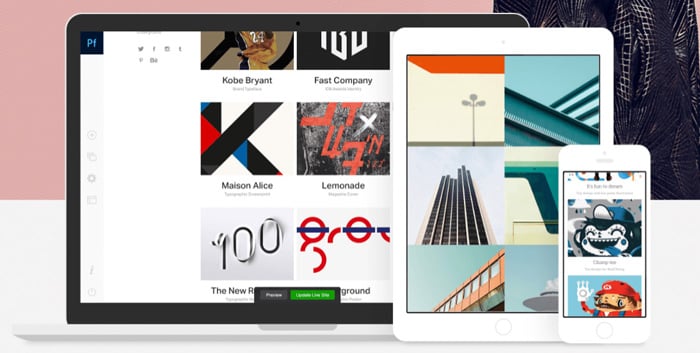
If you need a different kind of site, compare website builders for photographers. Decide whether you need to sell prints or publish a photography blog before you build the galleries.
What Is Adobe Portfolio?
Adobe Portfolio is included with eligible Adobe Creative Cloud plans. It is not included with every Adobe subscription, so check the plan details for Portfolio before you publish. It allows you to build a portfolio website to showcase your creative work or photography.
You can create image galleries and content pages, connect a custom domain, and control whether pages are public or password-protected. The layouts adapt to different screen sizes.
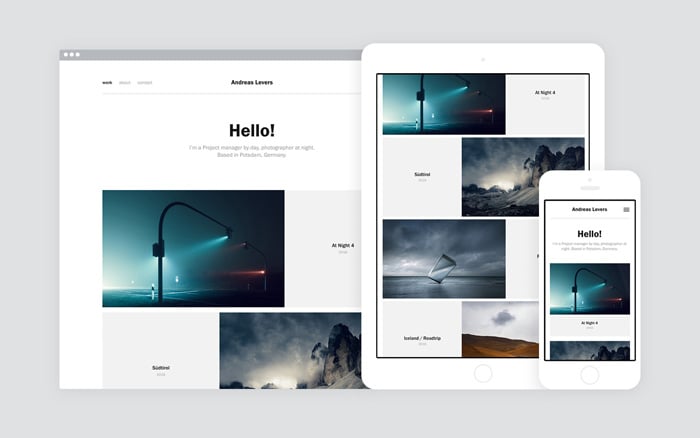
You can also connect Lightroom albums to your portfolio. Later changes to an imported album require an update within Portfolio; they do not simply replace the published gallery by themselves.
The Pros of Using Adobe Portfolio
The useful features are the ones that simplify how you present and maintain your work. Here is what to check against your own needs.
Adobe Portfolio Themes
Adobe Portfolio uses ready-made themes. You can adjust the design through its controls without building a website from scratch.
You can switch themes, but there is a tradeoff: Adobe says customizations such as colors, fonts, margins, and page covers do not carry across to the new theme. Check what changes when you switch before you spend time refining a layout.
Lightroom Integration
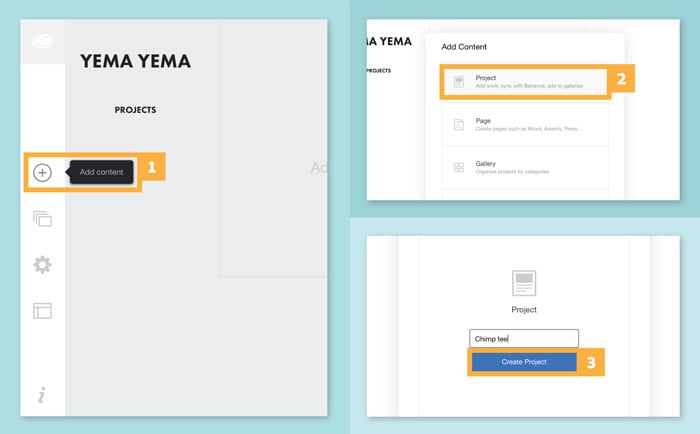
You can import Lightroom albums without exporting and uploading every image individually. This can fit into an existing Lightroom workflow.
The important limit is what happens after the import. Adobe’s album update guide says later photo edits and album changes do not sync to an already imported Portfolio album.
To update it, open Pages, select the gear icon beside the page, and choose Reset from Lightroom. This replaces the Portfolio album with the current Lightroom version. Check the result before you publish your website.
Adobe’s overview and older integration article describe Lightroom Classic differently. If Classic is essential to your workflow, verify its current connection in your own account before relying on it.
Customize Your Website Content
A portfolio needs context as well as photographs. Add an About page so visitors know who you are, and a contact page so they can reach you.
Portfolio supports text, images, video, and embedded content. Use captions when a photograph needs an explanation. Keep the navigation clear enough that a prospective client can find your relevant work without opening every gallery.
If you need to share selected work privately, Adobe supports password-protected pages. Pages protected from their first publication are not indexed by search engines until the password is removed.
Automatically Resizes Your Photos
Adobe Portfolio stores an uploaded image at its original resolution and creates versions at different widths. It serves a suitable version for the visitor’s screen.
You still need to prepare your files. Adobe recommends sRGB, appropriate compression, and dimensions suited to the page. Follow its image preparation guidance.
Resizing does not make an image impossible to copy. If you want to use a watermark, see how to add one in Lightroom. Treat that as a presentation and attribution choice, not a guarantee against reuse.

Custom Domain Name
Every Portfolio site has a built-in myportfolio.com address. You can also connect a domain you own or buy one separately.
Domain registration and website hosting are different services. Portfolio provides the site hosting. A custom domain has its own registration and renewal terms; you do not need a separate monthly hosting plan simply to point that domain at Portfolio.
Adobe’s custom-domain guide explains the connection options.
The Cons of Using Adobe Portfolio
Selling Your Photos
Adobe describes Portfolio as a site for presenting creative work. Its own guidance recommends considering other platforms when you need online-store or blogging features.
If the main goal is to sell your photos, compare the selling workflow before you commit. Consider how clients will choose an image, pay, and receive a download or print. A portfolio gallery and a complete store solve different needs.
General Flexibility
The themes give you a starting point, but you still need to check whether their layouts suit your work. A photographer with a specific design in mind may find a more flexible builder easier to adapt.
Test the elements that matter to you: gallery navigation, page spacing, image size, and mobile presentation. Do this before importing a large collection or connecting a domain.
Conclusion
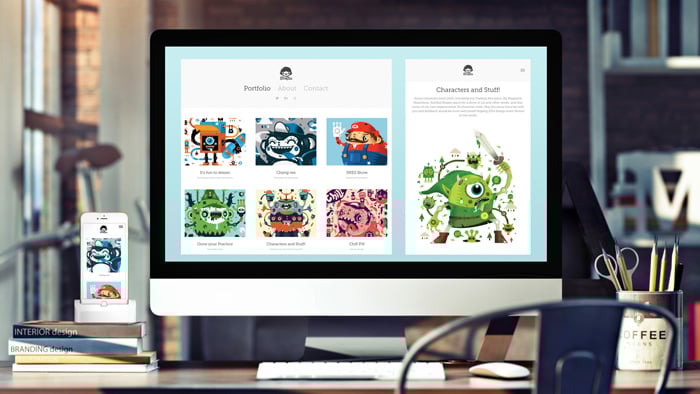
Adobe Portfolio is worth considering when you want a dedicated place for your work and a straightforward connection to Lightroom. A focused portfolio can give potential clients a clearer introduction than a mixed social media feed.
Check the limits first. Imported Lightroom albums need attention after edits, a theme change can reset customizations, and a portfolio may not provide the store or blog features you need. These points matter more than the number of themes.
Before building your full photography portfolio, try a small gallery and preview it on desktop and mobile. Check the current subscription requirements in Adobe’s plan details before publishing.
