Free Lightroom presets for portraits give you a starting point when editing portraits in Lightroom. For a lightly finished headshot, start with Clean Portrait. For a warm outdoor look, try Warm Retro. For a stronger city-portrait style, compare Urban Cool and Downtown.
The 25 choices below include individual presets and preset packs, with examples to help you choose a look. They are offered as free downloads by their makers, although some use an email form or a store download process. Adobe Lightroom is the editing software; a free preset does not include a Lightroom subscription.
How to Choose Lightroom Presets for Portraits
A preset is a saved group of editing settings. It can change color, tone, contrast, and other adjustments together. You can then fine-tune the result for your photo.
Choose for the light and subject in front of you:
- Headshots and studio portraits: Clean Portrait is designed for well-lit indoor portraits. Keep the finish restrained when skin color and clothing need to look familiar.
- Outdoor portraits: Warm Retro suits diffused light. Cinemora’s Forest pack focuses on foliage, while Morocco takes the edit in a warmer direction.
- Moody or vintage portraits: Compare Downtown for crisp urban contrast, Hollywood for a faded cinema look, and Antique Bronze for sepia.
Apply a preset to one representative photo first. Compare the face before and after, then adjust exposure and white balance as needed. A look that suits the trees or buildings may still need work on skin.
Best Free Lightroom Presets for Portraits
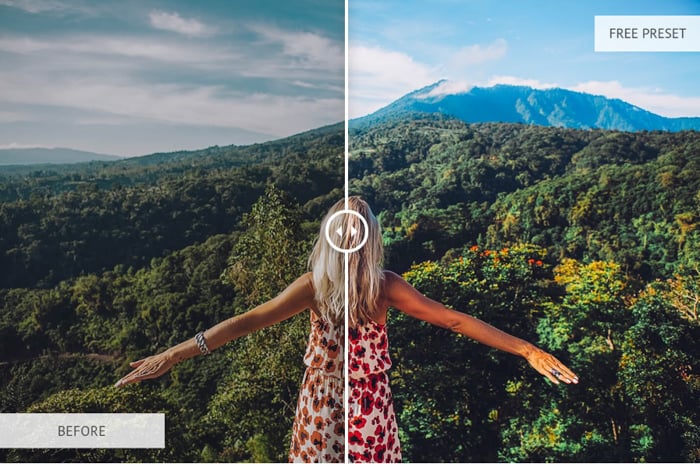
1. Fixthephoto’s Light and Airy Pastel
Fixthephoto’s preset collection includes a free Pastel option for a light, soft portrait edit.
Try it on a bright portrait when you want a gentler finish. Compare the face before and after applying it, especially the highlights on the forehead and cheeks. A pale look should still leave detail in the skin.
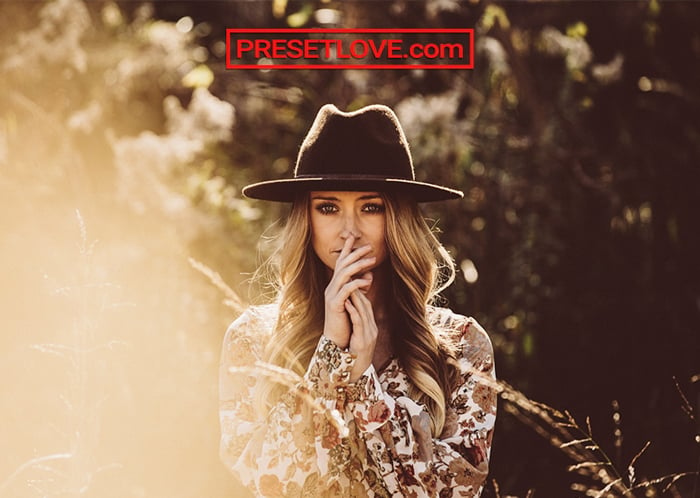
2. PresetLove’s Warm Cinematic
PresetLove’s Warm Cinematic is a starting point for a warm, muted film look.
It softens bright areas, lightens dark tones, and adds a brown-magenta tint with fine grain. That makes it a different choice from the harder, darker urban presets below.
The maker recommends well-lit photos with diffused light. Try it on a portrait taken in open shade or soft window light, then check whether the warmer tint suits the face.
3. ON1’s Signature Collection Vol. 1
ON1 offers its Signature Collection Vol. 1 as a set of 62 free presets built with Lightroom’s adjustment tools.
It is a library to explore if you want several looks from one download. Keep a small group that suits your portraits so you do not have to browse all 62 each time you edit.
The original collection link now opens ON1’s main free-preset page. Find ON1 Signature Collection Presets, Vol. 1 there. The download form asks for an email address, country, and agreement to ON1’s terms.
4. Clean Portrait Studio Preset
The Presets Room’s Clean Portrait is a starting point for a studio portrait or headshot that needs a light finishing edit.
The maker describes lower contrast, brighter lighting, and increased clarity and saturation. It is designed for indoor studio portraits with good lighting, so start with a well-exposed image.
The download includes XMP and DNG formats for desktop and mobile Lightroom. After applying it, inspect the eyes and skin at full size. More clarity can help define features, but you do not have to keep every adjustment at its preset value.
5. Cinemora’s Forest Presets
Cinemora’s free forest presets focus on foliage and woodland colors. They are an option for environmental portraits where trees fill much of the frame.
The pack has three presets: Dark Forest for deep greens and shadows, Foggy Mountain for softer highlights and mist, and Autumn Woods for golden-brown foliage.
The maker recommends diffused outdoor light, such as canopy shade or an overcast trail. The download is a ZIP of XMP files. Check the person’s skin as well as the trees; a forest color grade should not distract from the face.
6. Altphotos’ 10 Free Presets Pack
Altphotos has created a pack of 10 free Lightroom presets for portraits. Nine are color presets and one is black and white.
The pack includes warm, cool, brown-toned, and muted looks. Warmcol is an option for warmer color, Darcool emphasizes blue tones, and Monhighcon gives you a black-and-white alternative.
The website shows examples and describes each preset. Use those to choose a look before downloading the pack. Its collection download is separate from the optional newsletter form.
7. Warm Retro Preset
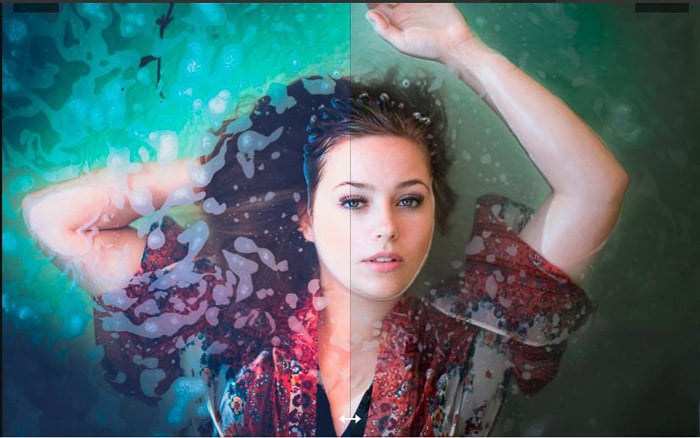
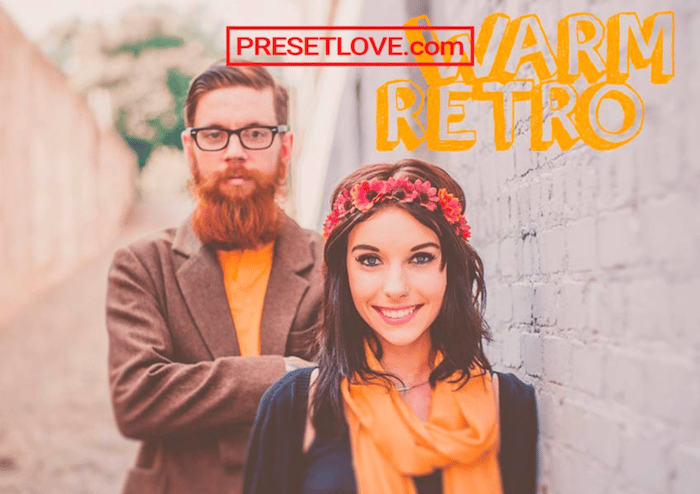
PresetLove offers many free Lightroom presets for portraits. And the Warm Retro Preset is one of its vintage options.
Warm Retro brightens the image and adds warm, slightly muted colors with a soft matte finish. It also boosts detail, so the result is more defined than a heavily blurred vintage effect.
The maker recommends diffused light, making this an option for outdoor portraits in soft shade.
8. Urban Cool Lightroom Preset
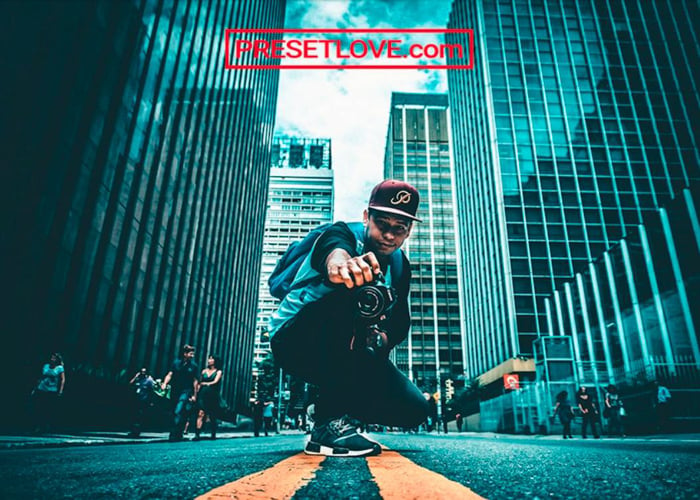
The Urban Cool preset adds green, blue, and violet tones for a cool city-portrait look.
It emphasizes color and detail, which makes buildings, pavement, and textured clothing part of the edit. It is a stronger style choice than Clean Portrait.
9. Free Lightroom Shadow Crusher Preset
Presetlove’s Shadow Crusher preset creates a dark, bold look with vivid tones and a magenta tint.
Try it for a dramatic urban or sports portrait. It is a stronger effect than a soft beauty edit, so judge it against the mood you want.
Watch the histogram as you adjust the result. Check that important detail in dark hair and clothing remains visible, and reduce the color cast if it overpowers the face.
10. All Gold Everything Preset
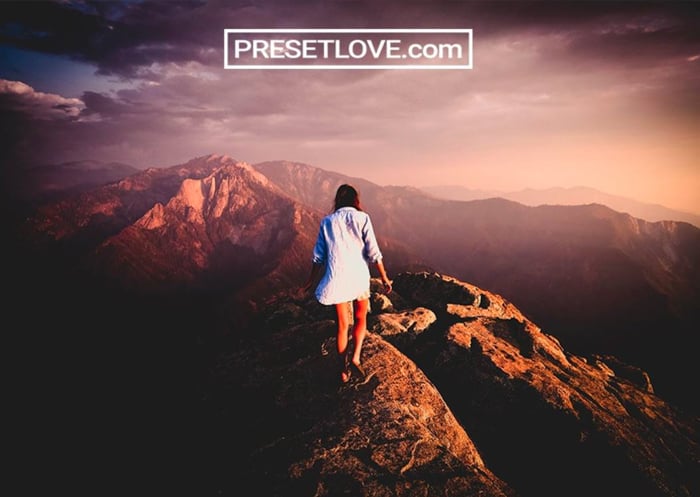
If you want to give your portraits a retro twist, check out Presetlove’s All Gold Everything preset.
It adds golden warmth, muted highlights, and magenta-tinted shadows. PresetLove describes the look as inspired by Kodak Gold film.
11. Antique Bronze Free Lightroom Preset
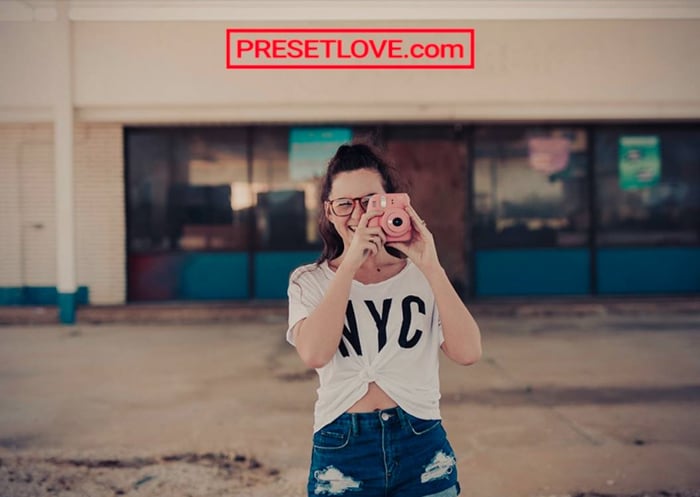
PresetLove’s Antique Bronze preset gives portraits a rich brown vintage treatment with a vignette.
Its sepia tone adds warmth to a monochrome-style image. The preset also increases clarity and whites to emphasize detail.
Try it when you want a period look for a portrait or an urban setting. Compare textures carefully; extra clarity can make both clothing and skin more prominent.
12. Movie Vibe Cinematic Portrait Preset
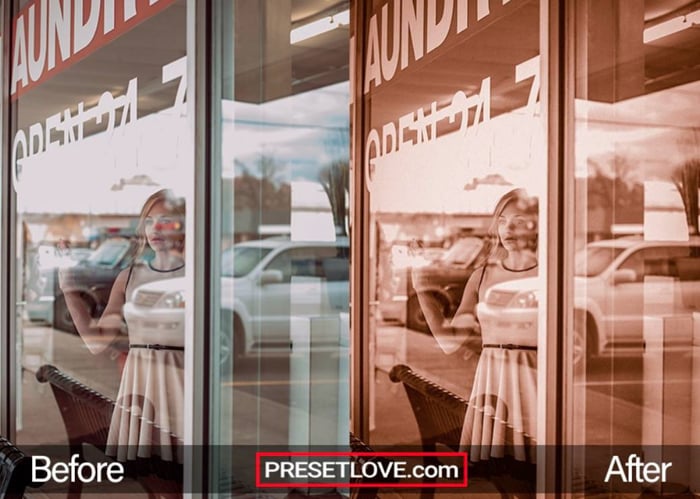
Presetpro’s Movie Vibe gives portraits a cinematic color grade with moody shadows and a warm treatment of skin.
The maker describes stylized color separation, soft highlights, and subtle grain. It is an option for a close-up or street portrait where the color treatment is part of the story.
13. Downtown Urban Portrait Preset
PresetLove’s Downtown preset is an option for crisp, high-contrast outdoor and urban portraits.
It deepens shadows, increases clarity, and subdues green backgrounds. This can help separate a person from foliage or a busy street scene.
The same definition can emphasize skin texture. Choose a softer starting point for a beauty portrait if that is not the look you want.
14. PhotoTraces’ Free Travel Collection
PhotoTraces sends its free Travel Collection after you sign up with an email address.
The 12 Lightroom presets include three portrait options: Clearface, In Style, and Coffee Time. There are also landscape, cityscape, and black-and-white choices.
Clearface opens shadows and reduces orange and red saturation. In Style uses a cross-processed look, while Coffee Time adds a brown-red overlay. These give you three different starting points rather than one look for every face.
15. Hollywood Preset
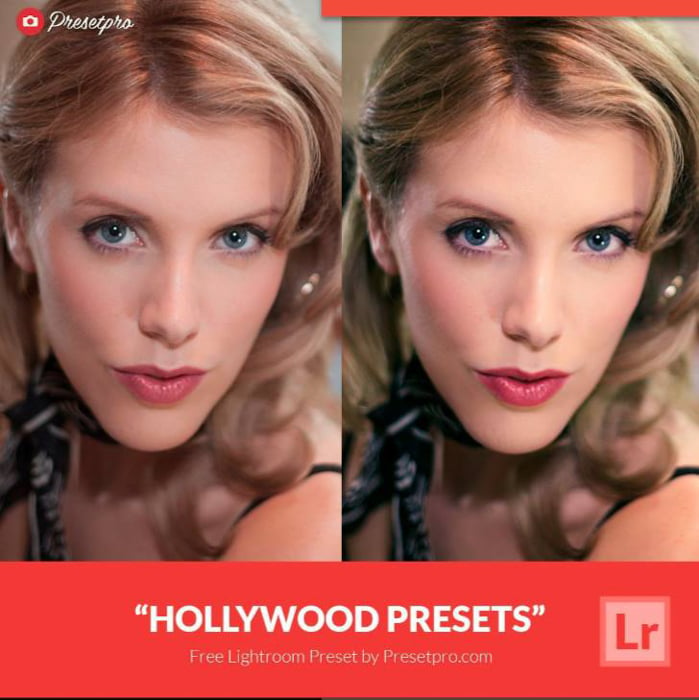
For a classic cinema look, try Presetpro’s Hollywood free Lightroom preset.
It separates colors, softens highlights, and lifts shadows for a faded finish. The maker suggests it for vintage portraits, weddings, and stylized fashion photography.
The download includes an XMP preset for Lightroom. Its lifted shadows are part of the faded style, so choose it when that finish suits the portrait.
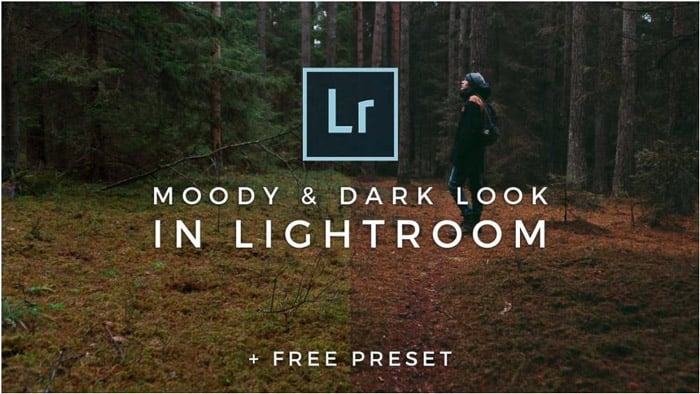
16. Dark Moody Lightroom Preset
Signature Edits pairs its dark portrait preset with its tutorial on how the look was made.
The Moody Lightroom Preset is listed as free in the Signature Edits store. Use the store’s download process to get it.
The edit combines a tone curve, reduced saturation, and color adjustments for a dark, faded mood. The tutorial explains the cooler green shadows and warmer color shifts, so it is a useful choice if you want to understand and adjust the effect.
17. Morocco Free Portrait Preset
Presetpro’s Morocco adds warm tones and stronger color to an image.
Try it on a travel portrait or an outdoor photo where you want to emphasize warm light. Its stronger colors are part of the style, so compare the face as well as the setting.
A preset cannot bring back detail that was never recorded in a completely white highlight. Start with a photo that has the detail you need, then adjust the warmth to suit it.
18. Rustic Marriage Wedding Preset
The Presets Room’s Rustic Marriage is one of the warm-toned presets for weddings on this list.
The maker designed it for rustic and autumn weddings, including sunset sessions. It emphasizes the warm colors of countryside settings and is intended for couple and group photos.
The download includes XMP and DNG formats. Check each person’s skin after applying it to a group photo, especially if some faces are in shade and others are in warm sunlight.
19. Elegant Wedding Preset
Chicpreset’s Elegant Wedding is an alternative when you want a brighter, cooler wedding edit.
The maker describes it as a preset that brightens and cools the image. Compare it with the warmer Rustic Marriage option when deciding which direction suits your photo.
Check white clothing, flowers, and skin after applying it. A wedding preset is a starting point; it does not guarantee that every original color will stay unchanged.
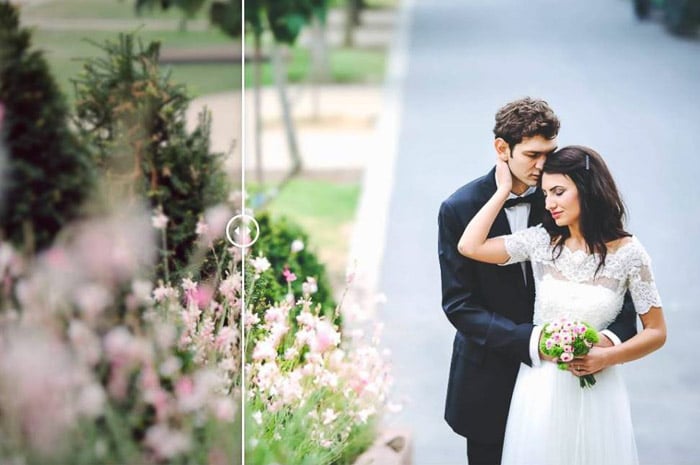
20. Free Night Music Time Lightroom Preset
This free Lightroom preset by PresetLove is designed for concerts, stage performances, and night photography.
Night Music Time brightens the image and combines cool-toned highlights with brown-toned shadows. It also adjusts clarity, sharpness, and noise reduction.
Try it when colored lights are an important part of the portrait. Inspect faces closely, since stage lighting and the preset’s color treatment can combine in different ways.
21. Grain It Up Portrait Preset
Try PresetLove’s Grain It Up preset for a brown-toned vintage edit with visible grain.
It softens color intensity while deepening dark tones and brightening lighter areas. The effect is a deliberate film-style texture, rather than a clean headshot finish.
22. Color Pop Preset
The Color Pop Preset adds warmth, brightness, and vibrance. Presetpro suggests it for portraits and weddings that need a stronger color treatment.
Try it on a portrait whose colors feel dull, then compare the skin and background with the original. More vibrance is not always the right choice for every part of the frame.
For a different direction, start by converting the image to black and white. That gives you an alternative based on tone and contrast when a stronger color edit does not suit the photo.
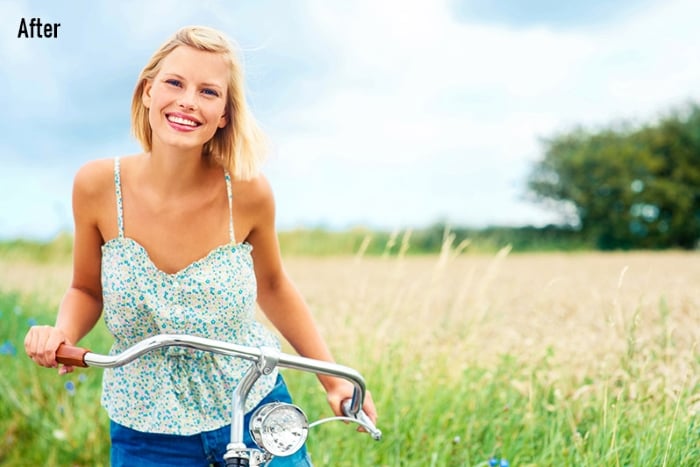
23. Sun Flares Preset
Sun Flares is FixThePhoto’s free portrait preset #5.
For an outdoor portrait, compare the example below with your photo before downloading. Look at the warmth and brightness you want for the finished image.
The download page also shows paid collections. Select the individual Sun Flares option and its free download button if that is the preset you want.
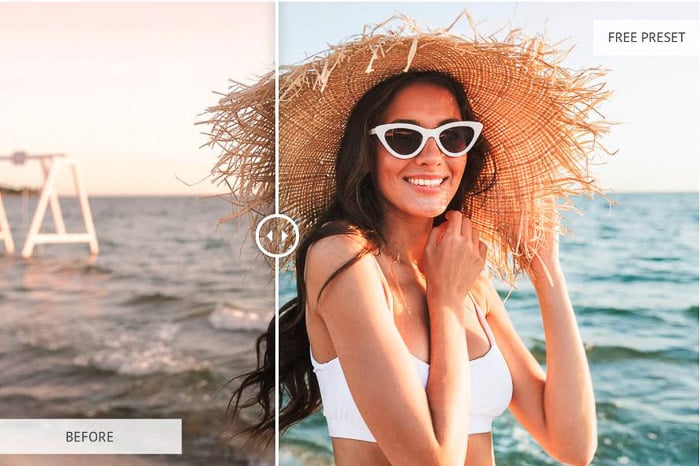
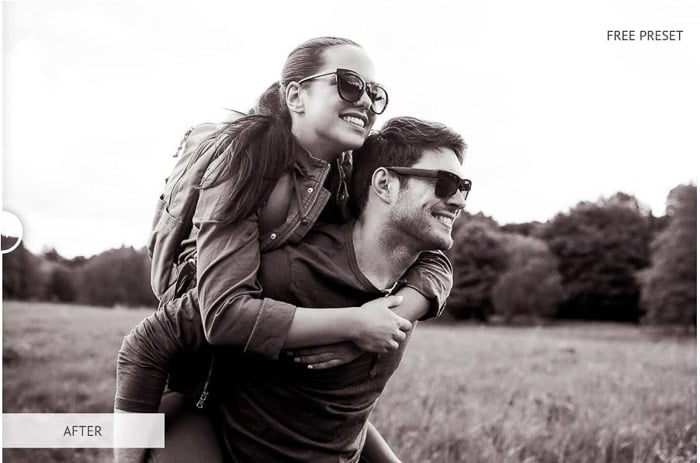
24. Black & White Bundle
Fix The Photo has loads of fantastic free Lightroom presets for monochrome portrait edits.
The collection lists options such as Soft, Brighten, Soft Skin, Chocolate, and Old Film. Compare their previews to choose between a softer portrait and a stronger vintage treatment.
Look at the separation between the face, hair, and background after converting. Colors that stand apart in the original may become similar gray tones, so a monochrome preset still needs a final contrast check.
25. Teal and Orange Preset
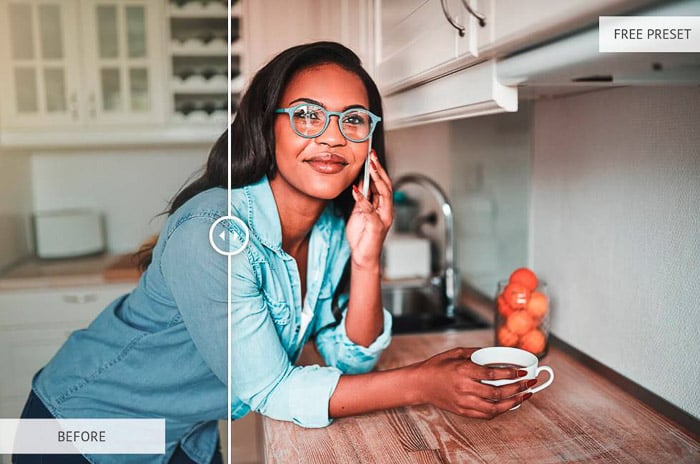
Teal and orange photos use contrasting cool and warm colors for a stylized look.
This Teal and Orange preset from Sean Dalton is a free pack offered for mobile and desktop editing.
Use it when you want a strong separation between warm and cool colors. Reduce the orange treatment if it overwhelms the face.
Best Lightroom Portrait Presets (FAQs)
How Do I Download Lightroom Presets?
Download the preset from its maker’s page and save it somewhere you can find it. Check which files the download contains before opening Adobe Lightroom.
- Lightroom Classic: Open a photo in Develop. In the Presets panel, select + > Import Presets, choose your preset files, and select Import. Classic can import XMP presets in a ZIP; extract older LRTEMPLATE files first. See Adobe’s Classic instructions.
- Lightroom on desktop: Choose File > Import Profiles & Presets, select the files, and click Import. This is a different menu from Classic’s Develop module. See Adobe’s desktop instructions.
Follow our in-depth walkthrough here for more help.
How Do I Download Lightroom Presets for Free?
Use the individual free download on the maker’s page. Some sites also show paid bundles, so check what you selected before continuing. ON1 and PhotoTraces use email forms for their free collections.
For other styles, see our collection of free Lightroom presets.
Can I Apply a Single Preset to All of My Images?
You can reuse a look, but check the result on each image. Start with a small group taken in similar light. A preset that suits one face in open shade may be too warm or too dark on a photo taken elsewhere.
Adjust exposure and white balance for each photo as needed. You do not need to download a new pack for every portrait.
Can I Use My Presets on Lightroom Mobile?
Yes. If you use the cloud-based Lightroom desktop version, imported presets can sync with Lightroom Mobile when you use the same Adobe account and an active subscription. Importing into Lightroom Classic alone is not the same sync route.
You can also import files directly in the current mobile app. Download and extract the files on your phone, open a photo, and choose Presets. Use the Options menu to select Import Presets; on iOS, open Yours first. Your imports appear under Yours > User Presets.
Adobe lists XMP, DNG, and LRTEMPLATE as supported import formats. Mobile cannot import a compressed ZIP, so extract it first. See Adobe’s mobile import instructions.
Conclusion: Best Lightroom Portrait Presets
Start with the look your portrait needs. Clean Portrait is a starting point for a well-lit studio photo. Warm Retro offers a softer outdoor style, while Downtown gives a city portrait stronger contrast.
Download one or two options first and compare them on the same photo. Keep the preset that supports the face and the mood, then adjust the settings before using it on the rest of the shoot.
For the next step, read about importing and installing Lightroom presets or Lightroom Mobile presets.