The best way to back up photos while travelling is to keep the originals on your memory card and make a checked copy on another device each day. Add a cloud copy when you have a reliable connection. Keep the card and backup apart so one lost bag does not take both copies.
For laptop-free travel photography, use a compatible phone or tablet to copy the files from a card reader to storage. The best way to backup photos starts with more than one copy, not simply a larger drive.

A portable drive needs a device to control the transfer. It cannot copy a camera card just because the two are connected with a cable. For example, LaCie's Rugged Mini instructions for iPad describe using compatible iPads with the drive. Test your own phone or tablet, reader, cables and drive together before leaving.
A Daily Photo Backup Routine for Travel
Choose a time you can repeat, such as after returning to your room. Back up before you need the card again, while the day's files are still easy to identify.
- Copy the originals. Connect the card reader to your phone, tablet or laptop. Copy the camera's folders into a dated trip folder. Use Copy, not Move, so the files stay on the card. Include RAW files, JPEGs and video if you shoot them.
- Make a separate copy. If you imported to the phone first, copy those originals to your external drive too. A second folder on the same device does not protect against that device failing.
- Check the destination. Compare file counts and sizes, then open sample files from the copied folder. Include files from the beginning and end of the day. These checks can catch an incomplete transfer; they do not prove that every file is intact. Use file-by-file checksum verification if your copying tool offers it.
- Keep the card. Leave it unformatted where possible. If you must reuse it, first confirm that you have two checked copies on separate devices without counting the card you are about to erase.
- Separate the copies. Store the filled card away from the backup drive. Two devices in the same camera bag can disappear together.
- Upload when you can. Add an off-site copy and check that the upload has finished. An upload waiting for Wi-Fi is not another copy yet.
The 3-2-1 backup rule means three copies, on two types of storage, with one off-site. On a trip, the camera card, a portable drive and a completed cloud upload are one way to work towards it. A second drive in another bag adds protection when you are offline, but it does not provide a remote copy.
Pack Your Backup Gear Alongside Your Camera
If you are a photography addict like me, you are probably preparing for travel with a mixture of excitement and stress. The excitement comes from all the possibilities to photograph landscapes, people, costumes, architectures and more. The stress? You have to pack your photographic equipment.
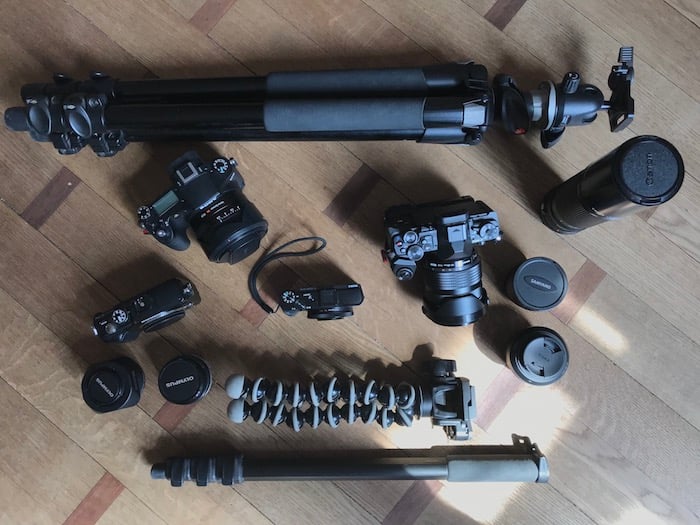
Packing is an art difficult to master, particularly if you have to travel light. How many lenses do you really need? What about the tripod? Should you take filters or a flash? Leave room for the card reader, backup storage and cables you have tested together.
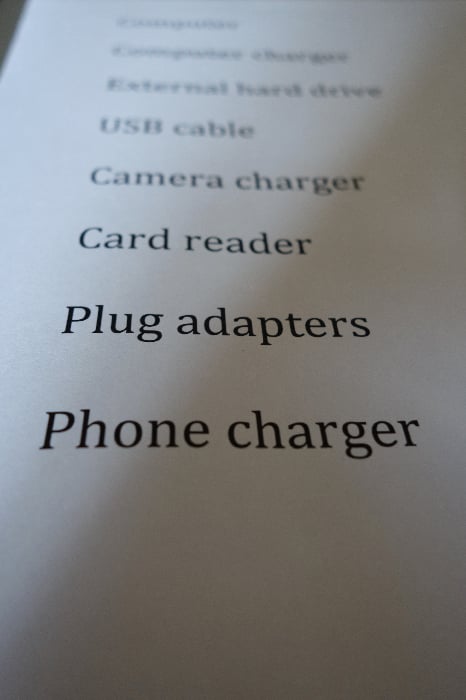
Making a list of what you want to take is a good way to visualise how many things you’ll be carrying around.
Your destination, photographic interests and how often you move will decide how much gear to carry. The photographs below show my earlier travel equipment. They illustrate the size differences and connection types; they are not a list of the latest models.
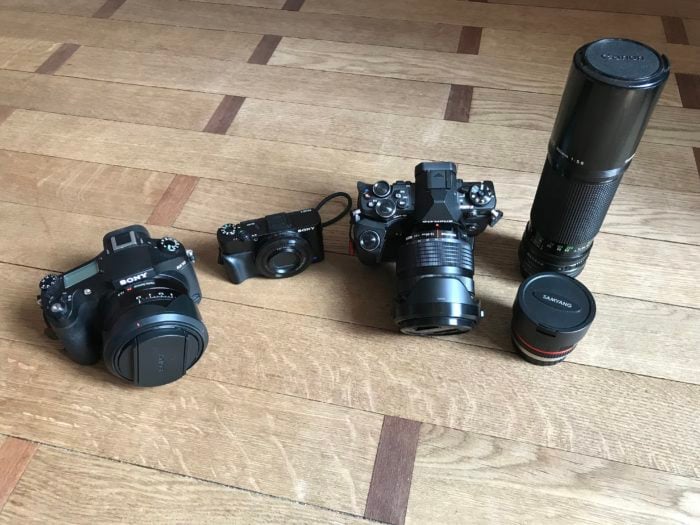
My Sony RX10 (left), Sony RX100 Mk ii (center) and Olympus OM-D EM-5 Mk II + a couple of lenses (right). Note the difference in size for those setups.
For a city trip, you might pair a travel tripod with a bridge camera such as the Sony RX-10. If you will be constantly on the move, a pocketable compact camera such as the Sony RX100 keeps the kit smaller. For an adventure, the Olympus Tough is another example from the original packing discussion. Whichever camera you take, build the backup setup around its actual memory card and files.
Before departure, shoot a sample day and measure the space used by the originals. For example, 20 GB per day for ten days is 200 GB for each full copy, before allowing spare capacity. Include video in your estimate and check the free space on the devices you will actually carry.
Do You Need Your Laptop?
A laptop makes sense if you already use it for editing, need desktop software or expect more files than your mobile setup can handle. You do not have to leave it behind to travel well.
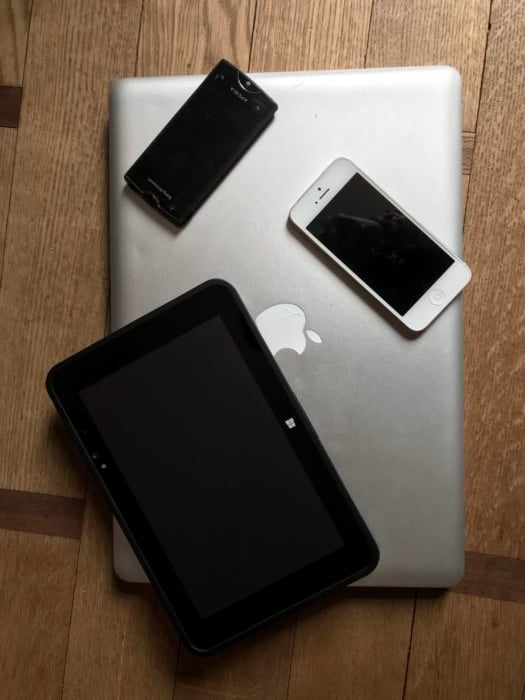
My 15″ MacBook Pro compared with a Windows tablet 8″, an iPhone 5 and a Sony Xperia Ray Android phone.
If weight matters more, a phone or tablet can handle a tested copying routine. Check photo management and editing separately: being able to view or edit a photograph does not prove that you have backed up its original file. Choose the device that can copy and check your files reliably, then plan how you will keep it charged.
More Memory Cards Are Not the Same as a Backup
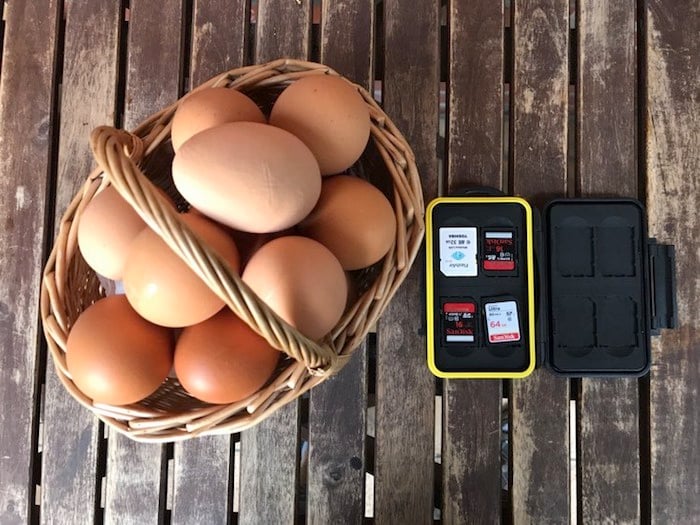
Don’t put all of your eggs in the same basket, nor all your SD cards in the same place.
Carry enough memory cards to avoid having to erase the day's only copy. Rotating cards limits how much is left in the camera, but each photograph still exists only once unless you copy it elsewhere.
Label filled cards and keep them apart from empty ones. If your camera offers simultaneous recording to two cards, check its manual and choose the setting that duplicates the files you need. Saving RAW to one card and JPEG to another does not give you two copies of the RAW file. Both cards also remain exposed to losing the camera until you remove one.
Devices for Backing Up Photos Without a Computer
The connection between your devices matters as much as the space available. A USB plug that fits is only the first part of the test.
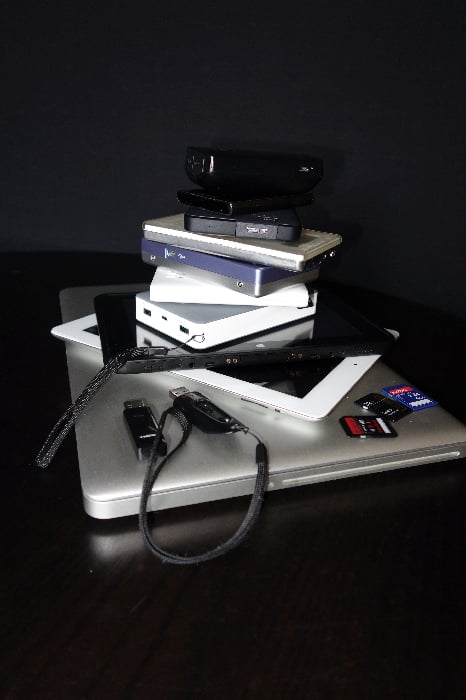
Power Banks
Plan power for the phone or tablet and any attached storage. A charging connection is not necessarily a data connection, and a power bank does not copy photos by itself.
If you already own a RAVPower File Hub, check its exact model's manual before including it in the backup setup. Do not assume that an ordinary power bank includes those functions. Treat a portable solar panel as a possible charging aid, not a guarantee that your devices will stay charged throughout a trek.
OTG Cables, Hubs and Card Readers
On a compatible Android phone, an OTG adapter lets the phone act as the host for USB storage. The adapter and file app must work with your particular device.
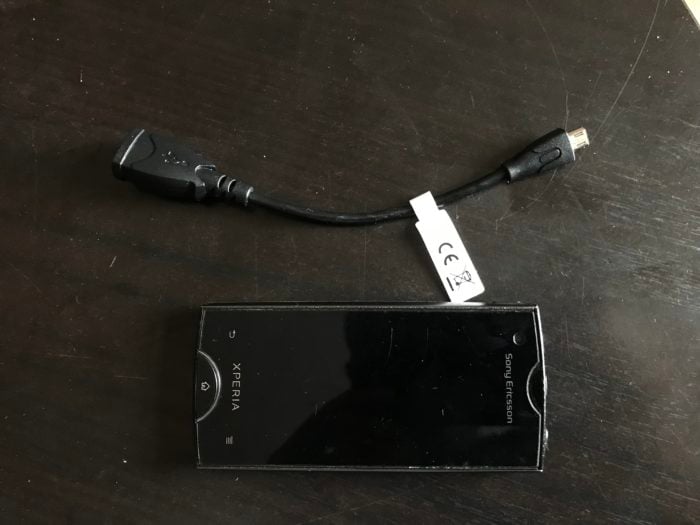
My old Sony Xperia Ray had an OTG port, so I was using a microUSB OTG cable to connect different USB devices.
Use a card reader that fits your camera's card type. You can copy to the phone's internal storage, disconnect the reader, then connect a drive and copy again. That needs enough free space on the phone for the files you are transferring.
A compatible hub may let the reader and drive connect together. Test this arrangement with the intended power supply; a drive that appears briefly and disconnects during copying is not ready for the trip. Google's USB storage instructions show how to find a connected device in Files by Google and use Copy to.
USB External Drives
An external hard drive gives you somewhere to put a separate copy. If you already own a drive, use it in your pre-trip transfer test before deciding whether you need another one.
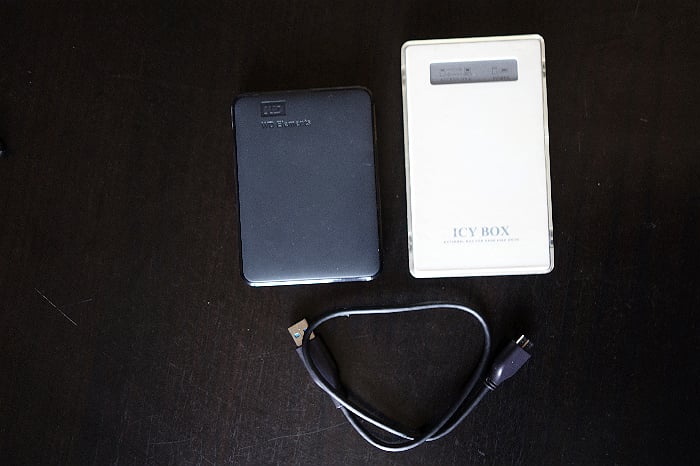
A WD passport external drive and a homemade HD using an enclosure for the hard drive that was once in my laptop.
Protect the drive from knocks and moisture, and leave it still during copying. Whatever its enclosure promises, keep another copy. Check that the device controlling the transfer can read and write the drive's file system before loading it with trip photographs.
USB Flash Drives and Spare Cards
USB flash drives and spare memory cards can also hold backup copies. Their small size makes them easy to pack and easy to lose.
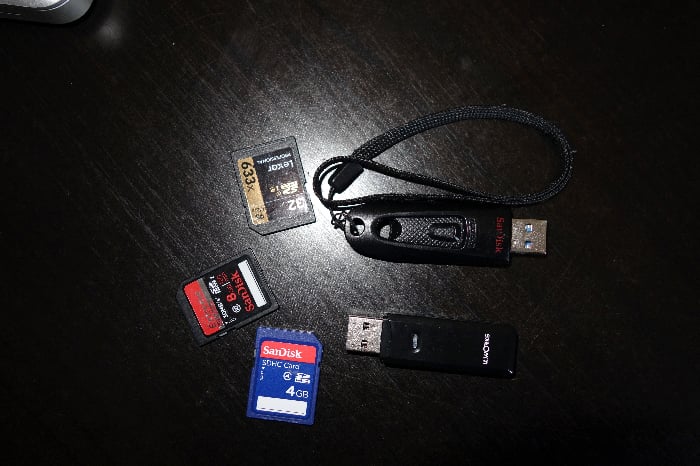
USB thumb drives and SD cards are great devices for backing up your photos.
Use a labelled case and check every transfer. A card used for new photographs and a different card used for backup need different labels. Do not assume that a device will survive water or a fall because another one once did.
Smartphones and Tablets
Choose between your existing phone, an iPad, an Android tablet or a Windows tablet by testing the work you need to do. Check free space, connections, power and whether the software handles your camera's files. There is no single memory specification that makes every tablet suitable.
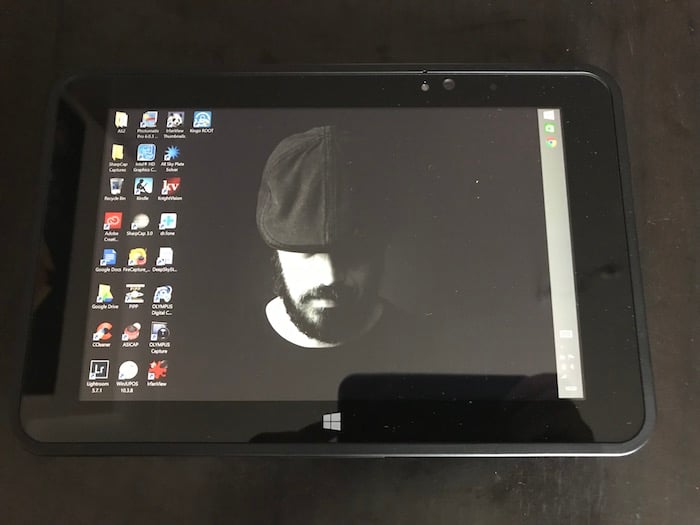
My windows tablet is a Fujitsu V535 industrial tablet. It’s also splash, dust and drop proof. Perfect for traveling.
The Windows tablet in this photograph is part of my earlier setup. For a device you use now, check the requirements of your actual editing software instead of choosing by operating-system name alone.
You can edit selected pictures in Lightroom Mobile, but keep the untouched originals separately. An edited JPEG for sharing is not a replacement for the camera file.
On iPhone, Apple's import and export instructions describe importing from a card reader and exporting to connected storage. In Photos, select the images, open Share and choose Export Unmodified Original. Choose the external device under Locations, then Save. For an edited photograph, this exports the original without those edits; keep a separate edited export if you want both versions.
Use a compatible connector or adapter. Older iPhones may need a Lightning flash drive or a supported camera adapter. Apple's external-storage guide lists supported formats and explains when a powered hub or adapter is needed. Never erase or reformat a drive containing your only copy to make it connect.
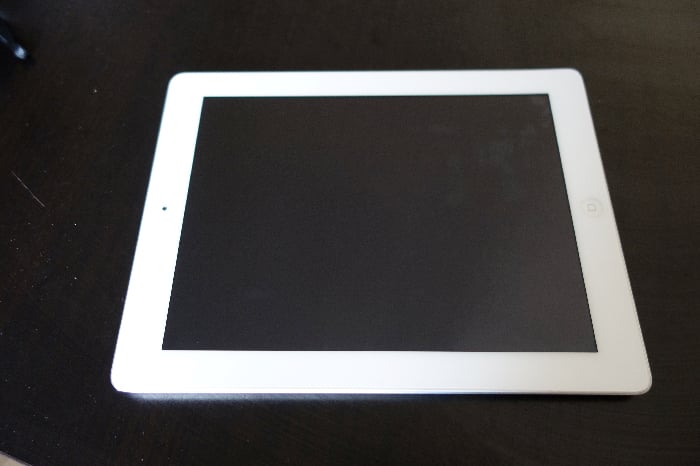
The iPad is a great tablet with more limited connectivity options
The iPad photograph and caption also show the earlier setup. Check the ports and storage support of your own model; do not judge a current iPad by the older device pictured here.
Standalone Card-Backup Devices
Older guides to all-in-one devices described an alternative to using a laptop. The device pictured below is a historical example.
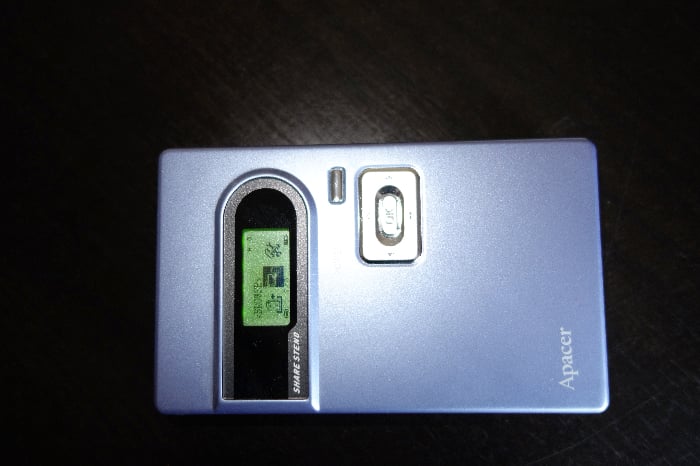
The Apacer Share Steno was one of the first standalone devices to manage and backup photos straight from the camera.
If you already have a standalone backup device, test it with your current cards and inspect the copied files. For any device you are considering, confirm in its own manual that it copies a card without a phone or computer, how it reports errors and how you can retrieve the originals. A wireless drive or USB hub is not automatically a standalone copier.
Other Connection Accessories
A small reader, the right data cable and a compatible hub can be enough. Pack the exact accessories used in your successful test, including any separate power supply.
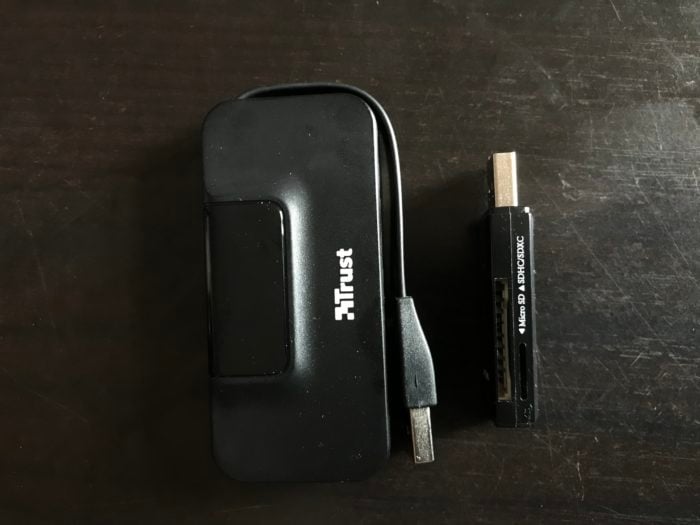
USB Hub and USB card reader for SD and micro SD cards.
If you copy through the camera instead of a reader, test that connection too. Keep a spare data cable if a single damaged cable would stop all your backups.
Cloud Backup on the Road
Cloud storage adds a copy away from your luggage. Use it when the connection and your storage allowance can handle the files. Keep the local routine as well so a slow hotel connection does not leave the day's photographs unprotected.
Check the account, upload settings and completion status. For example, Google Photos explains how to check backup status; seeing an image in the phone app alone does not prove it has uploaded. Confirm that the files and formats you need are included before counting the cloud as a full backup.
Sync also needs care. Apple states that deleting a photo with iCloud Photos enabled deletes it on the other connected devices. Do not use ordinary deletion as a shortcut to free space while assuming a synced copy will remain. Keep an independent copy of the originals.
Choose a Routine for Your Trip
1. Hiking or Camping Without Reliable Internet
Use your tested phone or tablet, card reader and separate storage. Carry enough cards to retain originals and enough power to finish the copies you plan to make. Keep one copy away from the camera bag. Add the remote copy when you next have a suitable connection.
A power bank helps with charging; file copying still needs the phone, tablet or a dedicated copier. Test the complete setup before you are days away from another option.
If you shoot both RAW and JPEG, you can share a JPEG without first developing the RAW file. That suits your blog, Facebook or Instagram. Back up both formats if you want to keep both.
2. Moving Between Hotels
Do the local copy before packing for the next departure. Check it, separate the storage and let a cloud upload finish when the connection allows. A tablet can reduce what you carry; a laptop may still be the easier choice if that is the setup you know works.
3. Staying in One Location
Use the laptop or tablet you can carry and store safely. Make the same daily copies even if you will spend the whole week in one room. Before the trip home, check that the final day's files are included and that you can open files from the backup drive.
Conclusion
Pick the backup routine before you pack: copy the originals, check the copy and keep it apart from the camera card. Use a compatible phone or tablet if you want to leave the laptop at home, and add a completed cloud upload when you can. Test every connection while you still have time to fix it.
For destination inspiration, see our Iceland photography locations and tips.