
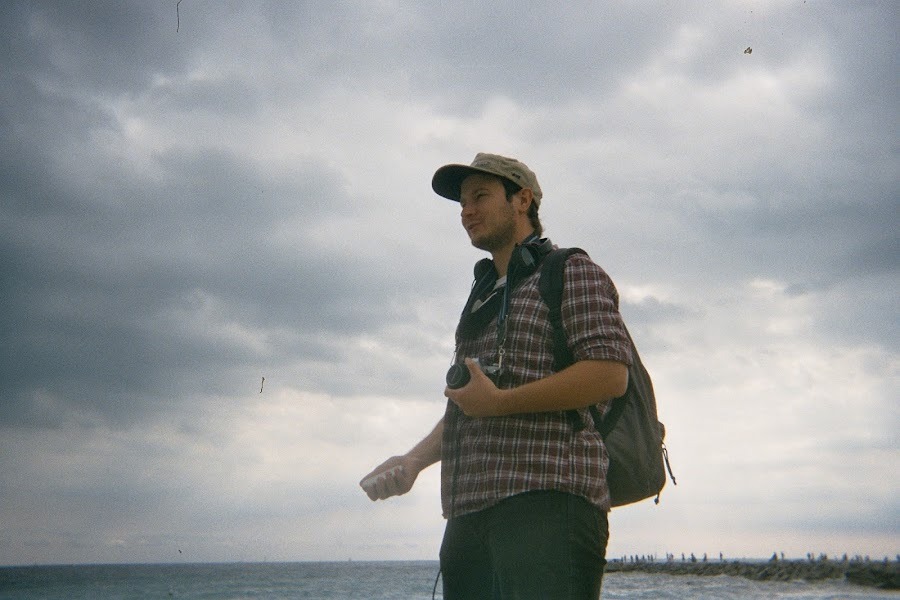
Photo manipulation lets you turn photographs into scenes that could never exist: a dancer repeated across a field, a city floating in the clouds, or a lake that breaks like a mirror. In Photoshop, you can build these effects by combining images, hiding parts of layers, and changing scale or perspective.
Below are 15 photo manipulation ideas with examples to help you plan your own image. For a first project, try a double exposure, a cut-out collage, or a painted silhouette. Folded landscapes and impossible rooms need more careful planning.
What Is Photo Manipulation?
Photo manipulation means changing a photograph's content or appearance. It can be a small edit, such as removing an object, or a complete transformation into surreal images. Here, the focus is on creative composites and digital collages. You can use Photoshop to build these effects from separate images.
Three Photoshop skills will help you get started:
- Layers: Keep each photograph or drawn element separate so you can move and edit it independently. Our guide to Photoshop layers explains the basics.
- Selections and masks: Select the part you want to keep, then add a layer mask to hide the rest. Paint black on the mask to hide areas, white to reveal them, and gray for partial transparency. Select the mask thumbnail before painting. See our Photoshop masking guide.
- Scale and perspective: Use Free Transform to position and resize elements. Choose source photographs with compatible viewpoints and lighting before you start; a clean cut-out alone will not make them fit together.
Use your own photographs or images you have permission to use and edit. If you use stock photos, check the asset's licence and restrictions. Do not assume that changing someone else's image makes it yours. Adobe's stock licensing guidance explains the conditions for its assets.
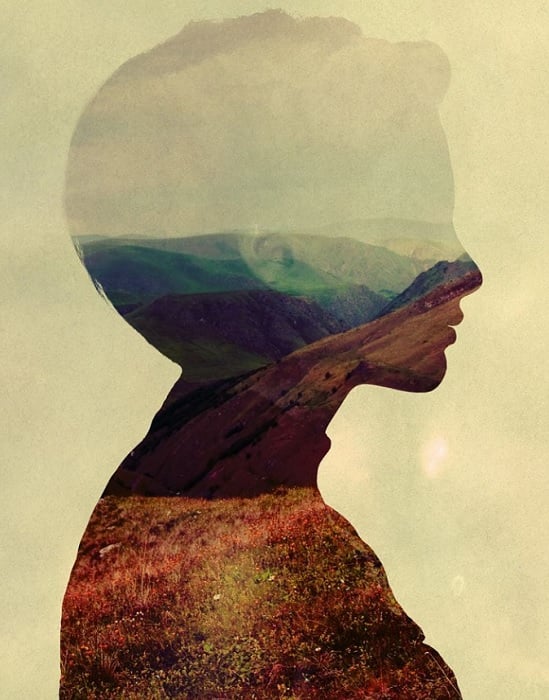
© Andreas Lie
15 Photo Manipulation Ideas to Try
These examples from Photo manipulation artists show different directions for a project. The photo manipulation techniques give you starting points to explore. The suggested starting methods are ways to explore each idea; they do not claim to reproduce the artists' exact workflows.
1. Try a Digital Double Exposure
A digital double exposure blends two photographs into one in Adobe Photoshop. A portrait and a landscape make a useful starting pair: the face gives the image a clear shape, while trees, mountains, or clouds add texture.
Place both images in one document on separate layers. Lower the upper layer's Opacity to see the image underneath, then move it until the important details overlap where you want them. Use a mask to control where the blend appears instead of making every part equally transparent.
In the example credited to Luke Gram, overlapping poses give the portrait ghostly outlines. Aim for a similar balance in your own image: keep a clear focal point rather than filling every space with detail.
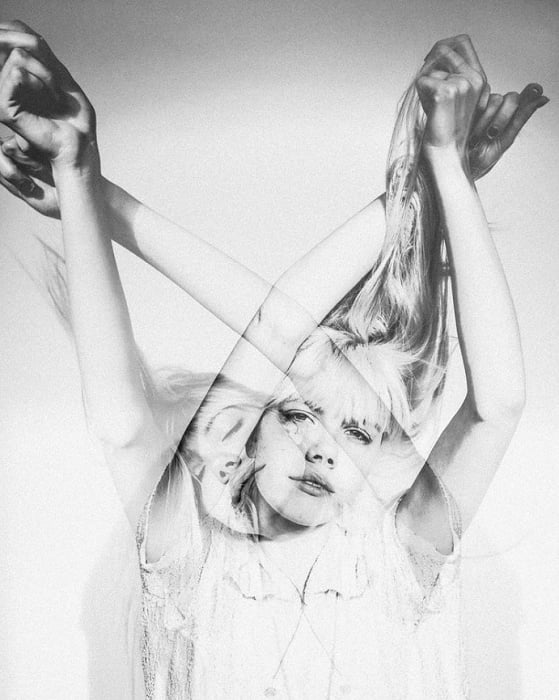
© Luke Gram
2. Make Your Subject Disappear
A partly invisible person can make an ordinary street scene feel strange. The example credited to Anna Maghradze keeps the clothing and umbrella visible while the body seems to fade into the surroundings.
For your own version, photograph a scene with and without the person while keeping the camera still. Place the person shot above the empty scene, then use a layer mask to reveal the background through selected parts of the body. Gray on the mask gives partial transparency; black hides the person completely in that area.
Leave an outline, clothing, or a held object visible so the viewer can still understand the figure. This is a suggested way to explore the effect, rather than a description of the artist's editing process.
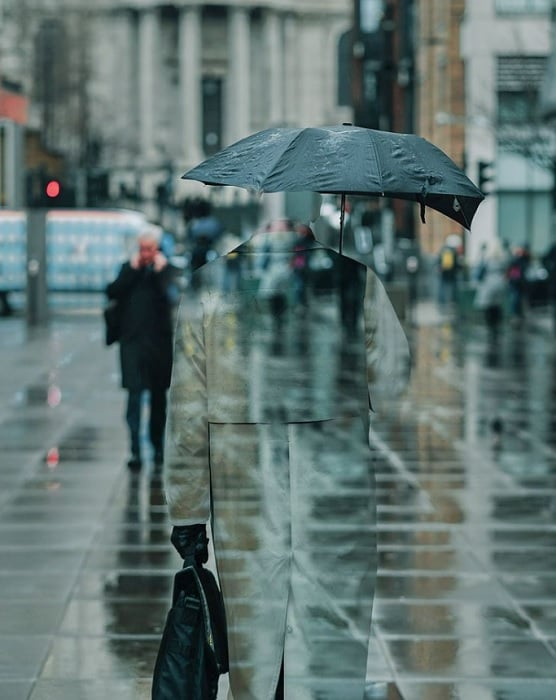
© Anna Maghradze
3. Multiply Your Subject
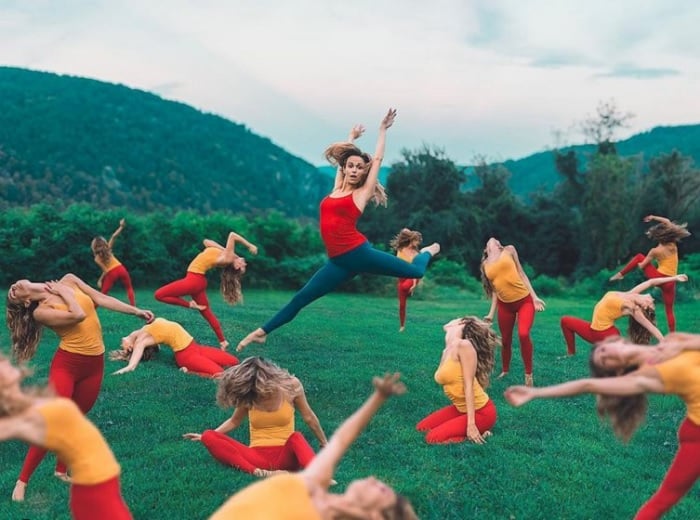
Multiplicity photography puts several versions of the same person in one scene. The repeated dancer in the example credited to Natalia Seth turns a single subject into a whole group.
Set up a tripod and leave the camera in the same position while the person moves between shots. Keep the background still and leave space between poses for a simpler first composite.
Stack the photographs as layers. On each upper layer, use a mask to reveal its version of the person and hide the surrounding background. Check feet, shadows, and overlapping limbs: these are where the separate exposures can become obvious. You can also make a more deliberately cut-out version with the collage approach.
© Natalia Seth
4. Use the Droste Effect
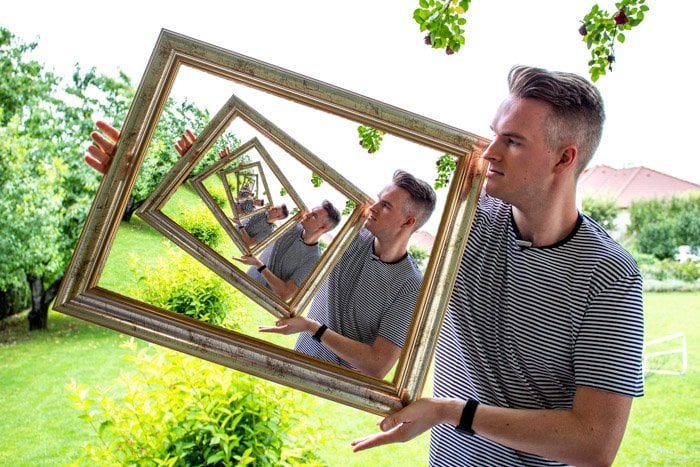
The Droste effect places a smaller copy of an image inside itself. A picture frame, television, or window gives the repeated image a natural place to sit.
For a straightforward Photoshop version, place a copy of your photograph on a new layer. Scale it down and fit it inside the frame, masking anything outside the opening. Repeat with smaller copies to create the impression that the scene continues inward.
The example credited to Josh Dunlop uses this picture-within-a-picture structure. A spiral version is a different treatment; our Droste effect tutorial explains both approaches. Start with the framed version so you can practise alignment without also building a spiral.
© Josh Dunlop
5. Restructure the Landscape
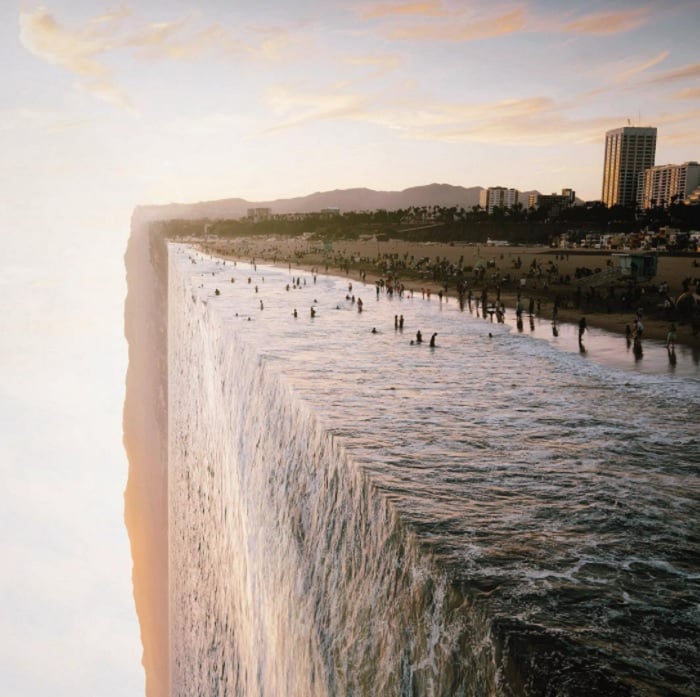
Turn a familiar landscape into an impossible place by making a beach rise like a wall or a road fold back on itself. The example credited to Jati Putra Pratama makes the change convincing by keeping recognizable details across the fold.
For your own experiment, start with a landscape photograph that has a clear horizon. Keep an untouched base layer, then put the section you want to bend on a separate layer. Rotate or reshape that section and mask its join with the original scene.
Photoshop's Perspective Warp adjusts defined planes; it is not a one-click folded-landscape effect. Plan the join, viewpoint, and shadow together. Treat this as a more demanding project than a simple overlay.
© Jati Putra Pratama
6. Combine Practical Props with Digital Editing
Physical props can give an impossible scene convincing texture. Photograph paper, fabric, reflective surfaces, or a small model, then combine those details with another photograph.
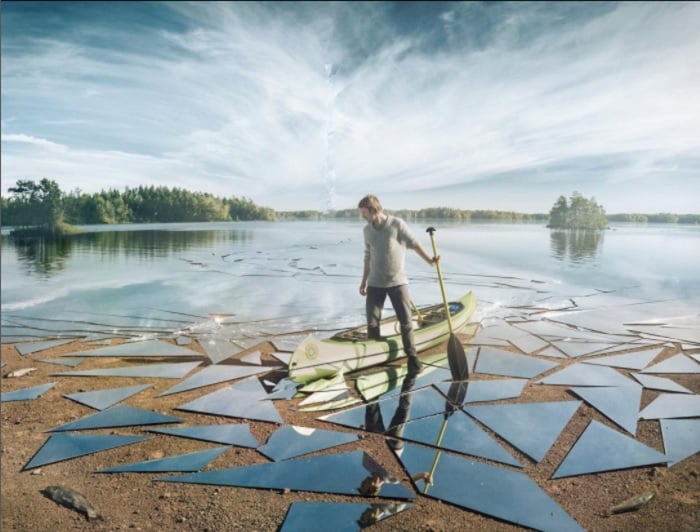
The broken-lake example below shows how a familiar material can suggest something much larger. Use that idea as a prompt: could crumpled paper become a mountain range, or a reflective sheet become a pool?
For a first attempt, choose a prop you can photograph with lighting that matches your background. Place it on a separate layer, adjust its scale, and mask the edges. Check the direction of its highlights and shadows before adding more elements. See the behind-the-scenes link for this example.
© Erik Johansson
7. Try Surreal Faceless Portraits
Removing or replacing a face changes how we read a portrait. In the example credited to Tommy Ingberg, a brick surface takes the place of facial features.
Try a portrait with a clear head shape. Place a photograph of a wall, flowers, or another texture above it, then mask that layer to fit the area you want to replace. Keep enough of the head, hair, and clothing to make the figure recognizable.
Match the texture's perspective to the face and add a considered edge where the replacement meets the head. You can aim for a believable opening or an obvious unique digital collage; choose one treatment so the result feels intentional.
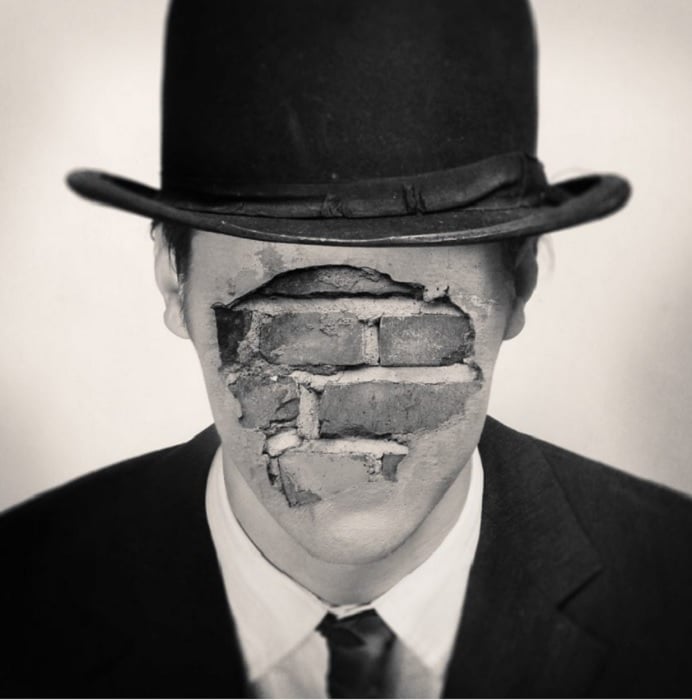
© Tommy Ingberg
8. Overlay Images for a Dual-World Effect
Composite photography brings two settings together in one image. A daytime scene can open onto a starry sky, or a curtain can reveal a landscape where a room should be. This juxtaposition gives the two worlds a visible contrast.
The example credited to Platon Yurich is effective because the lifted cloth gives the two worlds a physical connection. Its folds make the sky feel like a surface the person can touch.
For your own version, define where one world ends and the other begins before combining the images. Use a mask to reveal the second scene through that area. Keep the frame, curtain edge, or other foreground detail above the inserted image, and choose photographs with compatible lighting. The point of contact helps the viewer understand the illusion.
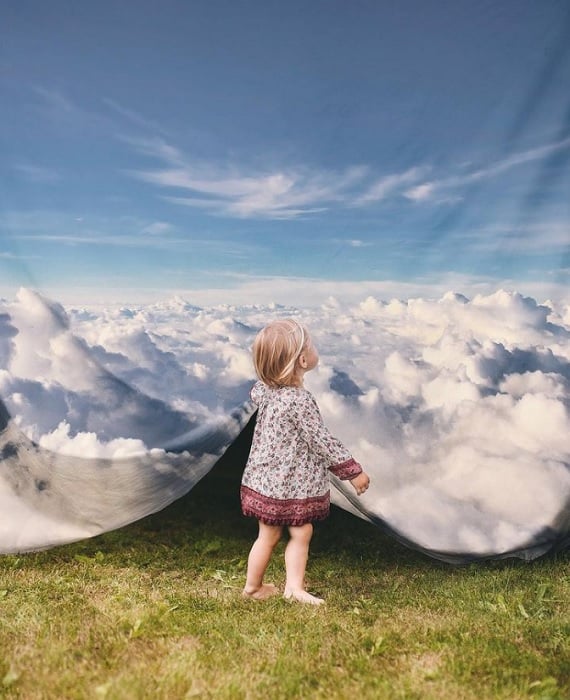
© Platon Yurich
9. Create a Cut-Out Collage Effect
A collage does not have to hide its joins. In the example credited to Frankie Lee Matthews, the subject and wave stand out against a pink background, with a shadow that suggests a paper cut-out.
Select a subject, add a mask to separate it from its original background, and place a solid-color layer underneath. Use another masked photograph for a second element, such as a wave, flower, or moon.
Keep the arrangement simple enough for the shapes to read clearly. Add a restrained shadow if you want the pieces to appear raised from the background. The digital collage tutorial linked above is a useful next step for assembling the separate elements.
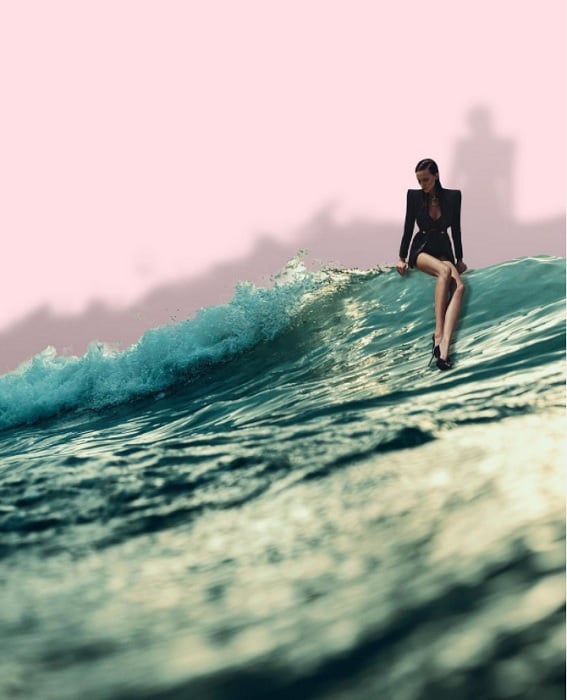
© Frankie Lee Matthews
10. Combine Photography and Illustration
Photoshop is a photo editing tool that also lets you add drawn shapes to a photograph to create a hybrid of portrait and illustration. The example credited to Alberto Seveso combines photographic detail with layers of color and shape.
For your own image, keep the photograph on one layer and create a new layer for the drawing. Try a few lines, blocks of color, or shapes around the subject before attempting a complex design. Separate drawing layers let you move or remove an element without painting over the original photo.
You can keep the illustration visibly different from the photograph or build it around the subject's contours. A pop art treatment is another direction to explore. Choose a limited set of colors so the illustration supports the photograph's focal point.
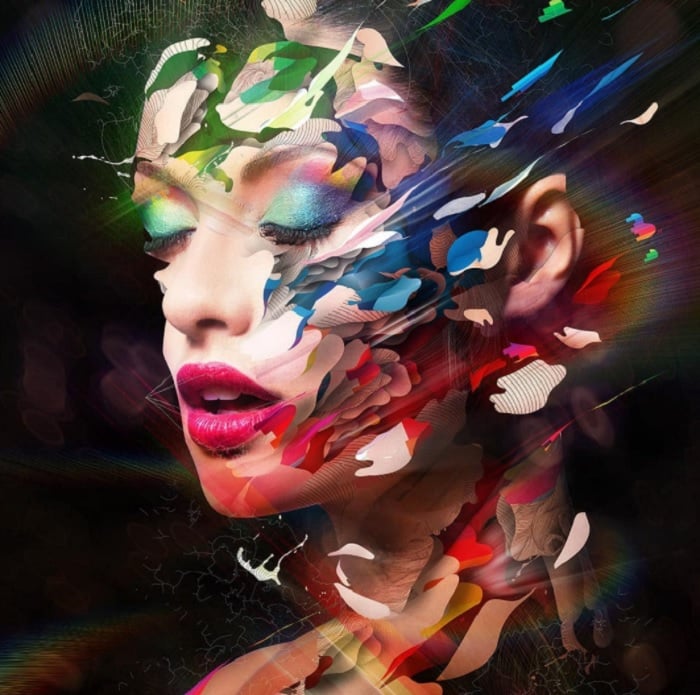
© Alberto Seveso
11. Add Movement with a Cinemagraph
A cinemagraph combines a mostly still image with a small area of looping movement. Think of steam rising from a cup while the rest of the scene stays fixed.
Record a short clip with the camera held steady. In Photoshop on desktop, work with the clip in the Timeline panel and place a still frame from it on a layer above the moving footage. Mask the still layer where you want the video to show through.
Choose motion that can repeat without an obvious jump, then preview the loop before exporting. A still JPEG cannot preserve the movement; you need an animated format or video. Follow our cinemagraph tutorial for the full workflow.
12. Create Portals That Connect Worlds
A doorway, window, or suitcase can become a portal into another setting. It is a useful storytelling technique because the opening gives the viewer a reason for two places to meet.
The example credited to Joel Robison uses a suitcase as the boundary between spaces. The emerging figure makes the connection feel active.
Try photographing an open frame or container, then place a second scene behind its opening in Photoshop. Mask the inserted scene to fit, keeping the rim and foreground objects above it. If a person or object crosses the boundary, arrange those parts on separate layers so the overlaps make sense. Consistent shadows will help the portal sit in its surroundings.
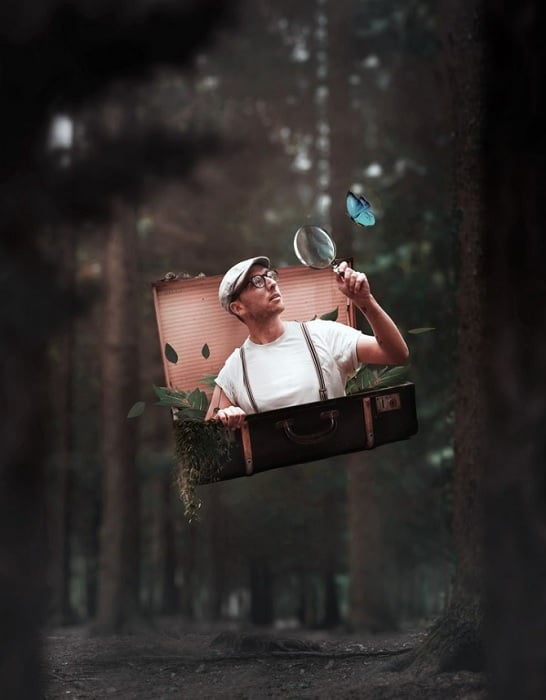
© Joel Robison
13. Relocate a City into a Dream World
Move a cityscape into the clouds, beneath the sea, or onto an unexpected landscape. The example credited to Charlie Davoli uses clouds to separate the buildings from their usual setting.
Start with a photograph of buildings and a second image for the environment. Select and mask the buildings, then position them over the new background. Use blending techniques to combine the stock images into a coherent scene. Choose a camera angle that makes both images feel as though they belong to the same view.
Pay attention to the bottom edge of the city. Let clouds or another foreground element overlap it where appropriate, rather than leaving a hard cut-out line. Compare contrast and color across the images; distant buildings should not stand out simply because they came from a different photograph.
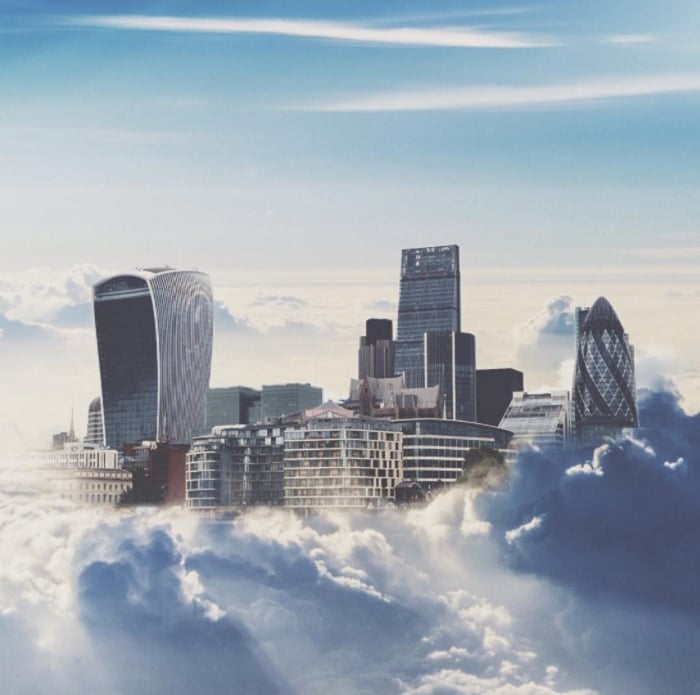
© Charlie Davoli
14. Make a Perspective Illusion
An impossible room can look ordinary until you follow its surfaces. The ladder example below makes connected floors and ceilings seem to occupy conflicting positions.
Sketch the illusion before shooting or choosing images. Decide which edges must line up and which part will break the viewer's expectation. For a smaller experiment, start with two photographs of a simple wall or doorway rather than a complete room.
Place each surface on a separate layer, use transforms to align the important edges, and mask the joins. Keep texture, scale, and shadow consistent around the connection. This differs from forced perspective photography, where the illusion can be arranged in front of the camera; here, you are constructing it from separate elements.
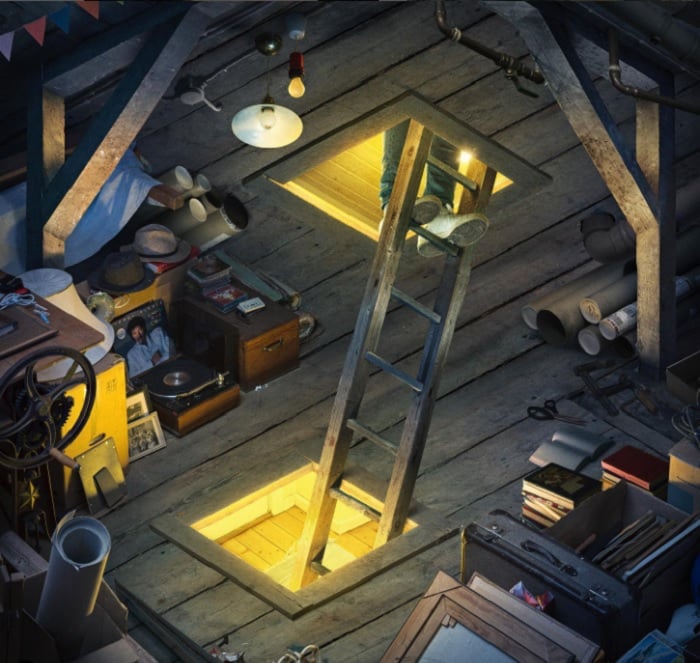
© Erik Johansson
15. Fill a Silhouette with Paint
Combine a silhouette with colorful paint marks for an abstract portrait. In the example credited to Andreas Lie, the figure's outline holds the composition together while the color provides texture.
Select your subject and use a mask to isolate its shape. Place a photograph or scan of your own paintwork above it. A clipping mask can restrict the paint layer to the visible content of the subject layer below; choose Layer > Create Clipping Mask with the paint layer selected.
Keep the outline readable and try placing the strongest color near the face or another focal point. You can also make a paint effect digitally. There are also other digital paint options you can try. Start with a simple shape before adding more detailed brushwork.
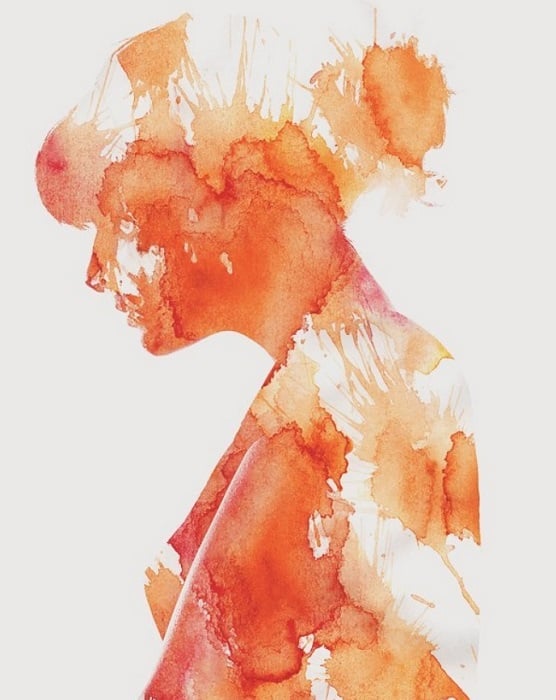
© Andreas Lie
Conclusion
You do not need to be a Photoshop expert to begin. Choose one idea and build a small version first. A two-image double exposure or a cut-out collage gives you room to practise layers and masks before tackling a folded landscape or an impossible room.
Before you finish, check the edges, lighting, shadows, and scale. Those details help the viewer believe in the scene, even when the subject is deliberately surreal.
If you want more surreal inspiration, check out The Magical Photography Spellbook!