No single app does everything on an iPhone. Shooting, editing, sharing and planning a shoot are four different jobs, and the app that wins one rarely wins the next. Most photographers end up running two or three.
We picked 14 camera apps for iPhone across those four jobs. If you install only one, make it ProCamera. It hands you shutter speed, ISO, white balance and ProRAW on a phone that otherwise hides all four. Halide is the pick if you would rather shoot clean RAW files with Apple’s computational processing switched off. And Apple’s own Camera app is still the fastest way to get a usable shot when the moment will not wait.

© Life of Pix
How to Choose a Camera App for iPhone
Work out which job you are doing before you look at a single feature list. The four groups below barely overlap, so the job settles the choice faster than the specs do.
- You want the manual controls Apple withholds. Shutter speed, ISO and white balance mean ProCamera or Halide Mark III. Take ProCamera if you shoot video too and want one app for both. Take Halide if you care more about a clean RAW file than about Apple’s processed look.
- You want one effect, cheaply. Slow Shutter Cam does long exposures and nothing else, for a single payment. With Halide, it is one of only two camera apps here you can still buy outright rather than rent.
- You want to edit on the phone. Snapseed if you refuse to pay anything, Adobe Lightroom if you edit RAW files and want the same catalogue on a desktop, VSCO if you work by applying a look rather than pushing sliders.
- You want to publish or plan. Instagram, 500px and Flickr each reach a different audience, and The Photographer’s Ephemeris tells you where the light will fall before you leave the house.
Jump to the section you need:
© Burak The Weekender
Best Camera Apps for iPhone
First of all, we will look at different camera apps for iPhones. These are iPhone applications that you use to take photos.
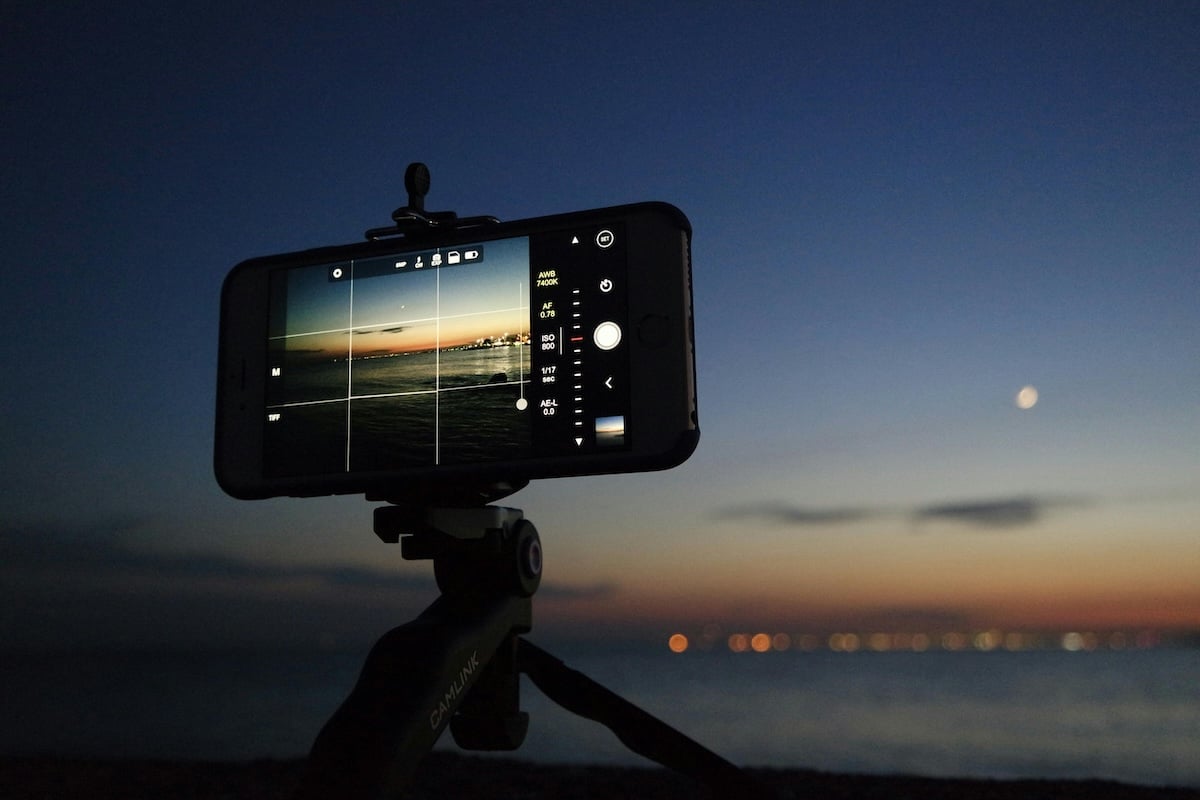
These apps let you drive the phone like a manual camera. You get shutter speed, ISO, white balance and manual focus, none of which the stock app exposes. What no app can give you is aperture control, because an iPhone lens has a fixed aperture and everything the phone calls depth of field is computed after the fact. Others let you shoot through filters, so you can simulate different film aesthetics in camera.
Let’s now look at the best camera apps for iPhone and see each one’s strengths and weaknesses.
The Apple Camera App that comes preinstalled is more capable than most iPhone owners realise. It will not hand you the shutter-speed and ISO dials the paid apps do. But for speed, reliability and a handful of features nothing else can reach, it earns its place at the top of the best camera apps for iPhone.
On Pro iPhones it shoots Apple ProRAW, which keeps Apple’s computational processing but still gives you a raw file with real latitude in the highlights and shadows. Photographic Styles bake a look in at capture rather than after it. And on iPhone 16 and later, the Camera Control button opens the app and changes settings without you touching the screen. None of it costs anything.
I am also a big fan of the easy exposure control that appears when you click on the photo. Swipe the sun up or down to get more or less exposure. You can also control the focus by clicking anywhere on the screen.
The Live Photo function is the sleeper feature. It records a short video around each frame, so you can pick a different moment when you miss the shot, or turn the whole clip into a long exposure afterwards. What it will not do is deliberate. There is no manual shutter speed, no ISO lock, and no way to switch Apple’s processing off. If any of those three matter to you, the next two apps exist for exactly that reason.
The leading professional camera app is ProCamera, from German developer Cocologics. It is what people reach for when the stock Camera app runs out of controls, and it covers stills and video in one place rather than making you buy two apps.
ProCamera is an all-in-one camera app for photographers who want to take phone photography seriously. You choose between point-and-shoot, semi-automatic and full manual shooting, so it gives you as much freedom or as much control as the situation calls for.
The full Manual mode is the reason to install it. Shutter speed, ISO, manual white balance with grey-card calibration, focus peaking, exposure compensation with zebra stripes and live histograms are all there. It writes RAW, ProRAW, TIFF, JPEG and HEIF, captures 48 MP files on iPhone 14 Pro and later, and supports the Camera Control button on iPhone 16 and later. There is an Apple Watch remote trigger and a proper EXIF viewer too.
The catch is how you pay for it. ProCamera is a free download with a seven-day trial, and after that it runs as a subscription. That is fine if you shoot every week and want the video tools as well. If you would rather buy a camera app once and own it, skip to Halide Mark III or Slow Shutter Cam below.
Halide Mark III is the camera app for photographers who want the iPhone to behave like a camera rather than a computer. Lux Optics built it around manual focus and RAW capture, and it is the only app on this list that will switch Apple’s computational photography off completely.
That switch is called Process Zero. It shoots without the multi-frame merging, sharpening and noise reduction the phone normally applies, and the files come back with stronger contrast and a more natural look. If you have ever found modern phone photos flat and over-cleaned, this is the setting you have been missing.
Halide also carries a set of Looks developed with Hollywood colourist Cullen Kelly, and a Tone Fusion slider that works like darkroom dodging and burning for rescuing highlight and shadow detail. You can apply any Look to ProRAW files you already shot in Apple’s Camera app. You can even import RAW files from a Canon, Nikon, Sony, Leica, Fujifilm or Hasselblad body and grade them on the phone.
The pricing is the friendliest here. Halide is a free download with a seven-day trial on the annual membership, and you can also buy it outright with a one-time purchase and never see a subscription. It does give ground to ProCamera on video. Halide is a stills app first, so if you need manual control over footage as well, buy ProCamera instead.
Camera+ is another well-known camera app for iPhone. It shoots in Auto, Manual or RAW modes, so you pick the level of control the scene needs instead of fighting the app for it.
A great feature that Camera+ uses is Magic ML. Magic ML uses machine learning to improve your photos as you shoot, which is a fast way to get a usable frame without stopping to edit on location. The editor also carries UltraRes AI upscaling, for pulling extra detail out of a file you want to crop hard or print.
Camera+ is now published by Heavy Plumb Apps, and the app has clearly moved towards AI assistance rather than deeper manual control. That is a real fork in the road: ProCamera goes further on white balance, zebras and metadata, and Halide goes further on focus and file quality. Camera+ is the pick when you would rather the app made some of the decisions.
It is a free download with in-app purchases rather than a single up-front price. So if the payment model is what decides this for you, Halide and Slow Shutter Cam are the only camera apps here you can still buy outright.
Slow Shutter Cam does one thing. It is on this list because it does that one thing better than any general camera app, and because a single small payment is the whole cost of entry.
Long exposures are a technique we usually associate with tripods and neutral density filters. Slow Shutter Cam gets there differently. Rather than holding one long exposure open and blowing out the highlights, it captures multiple frames and stitches them, which is how it produces clean light trails and silky water without a filter in front of the lens.
There are three capture modes and each maps onto a real job. Motion Blur is the shutter-priority equivalent, for waterfalls and ghosted figures. Light Trail is for car trails, fireworks and light painting. Low Light accumulates exposure in the dark. A live preview shows the effect building, so you stop the exposure when it looks right rather than guessing.
Two things will put people off. There are no editing tools at all, so the file goes straight into Lightroom or Snapseed afterwards. And if you never photograph moving water, traffic or star trails, you will open it once and forget it. For everyone else it is a one-time purchase with no subscription attached, which makes it the easiest yes on this page.
Best Camera Apps To Edit Your Photos
Now for the best camera apps for iPhone that edit your photos. This is where most of the difference between a snapshot and a finished picture actually happens.
You can also pull images off a mirrorless or DSLR body over Wi-Fi or a cable and edit them on the phone, which is how a lot of photographers file work before they get home.
The iPhone’s built-in editing tools are decent, but they run out fast on RAW files and selective adjustments. Here are the four apps that go further, and the one that keeps it simple.
Adobe Lightroom is the most complete editor on this list. Adobe rebuilt its desktop adjustments for a touchscreen properly rather than shrinking them, so exposure, highlights, shadows, colour grading and curves all work with a thumb.
The free tier covers a genuinely useful range of basic and advanced edits, and it opens RAW files. The paid plan adds the things you will eventually want: AI Generative Remove for erasing objects, background blur, Adaptive Presets, and cloud sync so the same catalogue is waiting on your desktop.
Lightroom is the right choice if you shoot RAW and edit seriously. It is the wrong choice if you want to fix one photo in twenty seconds and post it, because the learning curve is real and the subscription only pays for itself if you use it every week. Snapseed below does the quick job for nothing.
Snapseed is a photo editor made by Google and it is the best free app on this page by a distance. Google gives you more than 30 pro tools and filters with no subscriptions, no in-app purchases, no ads and no watermarks, which is close to unheard of now.
Like Lightroom, Snapseed uses creative ways to edit with real control on a small screen. I am particularly fond of how you can control Curves and the Brush tool with your finger. It opens RAW files, edits non-destructively so you can revert any change later, and its Smart Masking picks out a subject without you tracing round it.
The 2026 version also added a camera of its own, so you can shoot straight into a film style, plus Halation, Bloom and Grain tools for anyone chasing an analogue look. What Snapseed will not do is sync to a desktop or manage a catalogue. If you edit a handful of photos at a time and never want a bill, it is the one to install.
Photoshop Express is Adobe’s fast editor rather than its powerful one, and it is worth being clear about that before you install it expecting desktop Photoshop.
What it does well is speed. One-touch enhancement, presets and aesthetic filters, red-eye correction, dehazing, perspective and crop fixes, noise removal, and portrait retouching all take a couple of taps. It reads RAW and TIFF files as well as JPEGs, builds collages from ready-made grid layouts, and trims and resizes video for social.
Where it stops is deliberate. It has Adobe Firefly tools such as Generative Expand, Generative Fill and an AI background swap, but there is no catalogue, so any serious RAW work belongs in Lightroom. Treat Photoshop Express as the app you open when a photo needs to be fixed and posted in a minute, and you will get on with it.
VSCO is the editing app for you if you prefer to reach for a look rather than build one. It ships a large library of film-inspired presets, and you can save your own edits as recipes to apply to future photographs in one tap.
VSCO also comes with a camera that has the effects built in, plus AI editing tools and a portfolio site if you want somewhere to put the results. The community side is quieter and less performative than Instagram, which is part of the appeal for a lot of photographers.
Be clear on the cost before you commit. VSCO runs on a seven-day free trial and then an annual membership, and the free tier is thin by comparison. It is also the wrong app for precise, technical corrections: if you want to fix a specific problem in a specific area of a frame, Lightroom or Snapseed will get you there faster.
Pixlr is the simplest editor on this list to pick up, and it has quietly become the most AI-heavy. It is free to start, and it gives you filters, adjustment tools and flexible grid layouts for collages and carousels.
The AI additions are what changed it: generative fill for adding, replacing or removing part of a photo from a text prompt, prompt-based editing, and image-to-video. Those tools sit behind a premium subscription. If you want careful, photographic RAW editing rather than fast creative transformation, Lightroom and Snapseed are the better homes for that work.
Best Camera Apps To Share Your Photos
You captured the photo and edited it. Now the final step is to share it. Several photography sites have huge communities of photographers, and most of them have an app for uploading straight from your phone. Pick one and use it properly rather than spreading yourself across all three.
Instagram is the most well-known of today’s photo-sharing apps. It’s for mobile devices but also has a browser version.
Instagram gained traction with the surge in smartphone photography, while more desktop-based sites were slow to catch up. It is still the easiest place to find and follow your favourite photographers and photography publications, and the largest audience any of these three apps can put in front of your work.
The iPhone app comes with a basic camera and some photo editing features. The real value is the reach. What you give up is control over presentation: the feed compresses your files, crops to its own aspect ratios, and shows your photos to whoever the algorithm decides. If you want your work displayed at full quality on your own terms, 500px and Flickr do that better.
500px is one of the best ways to share and sell professional photos online today. It displays uploads in uncompressed high resolution, and its Getty Images licensing partnership is the route by which photos on the platform actually earn money. It even shows the camera settings behind each photo, which is a genuinely good way for beginners to reverse-engineer a look.
This site is more geared towards immaculate landscape and portrait photography. It is desktop-based, but the iPhone app works well and has a good level of functionality to it.
Is this the place for photos taken with a smartphone? It can be, but the standard is high and the audience is technical. Upload the two frames you are proudest of rather than the whole set, and expect a smaller, harsher, more useful response than Instagram gives you.
Flickr was the original photo-sharing website and it is still, on its own numbers, the largest community of its kind: billions of photos and millions of interest groups. It is owned by SmugMug now, and the app handles uploading, organising and basic editing from the phone.
Its real strength is the community infrastructure. Groups, comments and long-running themed pools give you a place to talk about photographs with people who care about them, which is something neither 500px nor Instagram genuinely offers any more.
What is shared and featured here is wider and better curated than what other sites offer. It is not the place to grow a following fast, though. Flickr is for photographers who want their archive somewhere permanent and searchable, and who would rather have ten real conversations than a thousand likes.
Best Camera Apps To Help Plan Your Outdoor Photography Trips
The Photographer’s Ephemeris is an outstanding iPhone app that doesn’t fit into any of the categories above. It is a map-centred sun, moon and Milky Way calculator, and it is the app that turns a hopeful early start into a plan.
Drop a pin anywhere on Earth, pick a date, and it shows you how the light will fall on the land. Its combination of augmented reality, line-of-sight analysis and visual search is what lets you check whether a ridge will block the sunrise, or line up a full moon behind a building months ahead.
The iPhone app also shows the position and route of the Sun, the Moon, and the Milky Way. Two of its seven map types work offline, so a saved location list is still usable with no signal, though elevation calculations do need a connection.
It is a one-time purchase rather than a subscription, and the optional Skyfire sunrise and sunset colour forecasts are a separate in-app purchase. Skip it if you only shoot indoors or in cities at midday. If you drive an hour to a landscape location, it pays for itself the first time it stops you making the trip on the wrong day.
Frequently Asked Questions
What Is the Best Camera App for iPhone?
ProCamera is the best all-round camera app for iPhone. It adds shutter speed, ISO, white balance and ProRAW to a phone that hides all four, and it handles video as well as stills. If you want the cleanest possible RAW file rather than the widest set of controls, Halide Mark III is the better buy.
Is There a Free Camera App for iPhone That Shoots RAW?
Apple’s own Camera app shoots Apple ProRAW on Pro iPhones at no cost, and it is the only free option here that does. The third-party apps that expose full manual RAW capture, ProCamera and Halide, both charge for it.
Which iPhone Photo Editor Is Free With No Catch?
Snapseed. Google gives you more than 30 tools and filters with no subscriptions, purchases, ads or watermarks, and it opens RAW files. Lightroom, Photoshop Express, VSCO and Pixlr all have free tiers, but each of them keeps its better features behind a paid plan.
Do I Need More Than One Camera App on My iPhone?
Most photographers end up with two. Shooting apps like ProCamera and Halide have limited editing tools, and editors like Lightroom and Snapseed have no real camera. A third app only earns its place if you shoot a specific effect, such as long exposures with Slow Shutter Cam.
Can an iPhone App Replace a Real Camera?
Not for reach or for low light. A manual camera app removes the software limits, but it cannot change the sensor size or the lens. What it does change is how much of the file you control, which is why a ProRAW file from ProCamera or Halide survives heavy editing when a standard JPEG falls apart.
Conclusion
You do not need 14 apps. You need two, and possibly three.
Start with a capture app that gives you the controls Apple withholds. ProCamera is our pick for most photographers, because it covers stills and video in one subscription and writes ProRAW and 48 MP files. Take Halide Mark III instead if you would rather own the app outright and shoot without Apple’s processing in the way. Apple’s own Camera app stays on your home screen for everything that has to happen in two seconds.
Then add one editor. Snapseed if you want to spend nothing, Adobe Lightroom if you edit RAW files and want the same catalogue waiting on your desktop.
After that, add only what your photography actually needs. Slow Shutter Cam if you shoot moving water or light trails, The Photographer’s Ephemeris if you plan sunrises, and one sharing app rather than three. Install the capture app first and shoot with it for a week before you buy anything else.