Choosing the best Photoshop plugins can be incredibly confusing. There are just so many of them. But have no fear! We’ve picked some of the best plugins, effects, and actions. They range from sophisticated AI-powered processes to simple brushes and textures. And pretty much everything in between!
And there’s a range of paid and unpaid options for you to choose from.

What Are the Best Photoshop Plugins, Effects, and Actions?
We’ve collected the best add-ons for your Photoshop work. We’ll examine them in detail. But first, here is a summary of our recommendations.



The 9 Best Photoshop Plugins
So, what are the best Photoshop plugins? Here are our top nine picks for you.
ON1 is known for its powerful image editing software. Their new series of Photoshop plugins keep up that good name with a set of five professional tools.
ON1 Effects is a collection of looks, filters, lookup tables (LUTs), and presets. They are designed to give your pictures a professional look. Once a preset is applied, you can enhance texture, tone, and color. And you can save your own presets to use again in the future.
Not only does it work with Photoshop, but it works in Adobe Lightroom, Capture One, Affinity Photo, and Apple Photos. Like all the best Photoshop plugins, ON1 Effects also works as a standalone application.
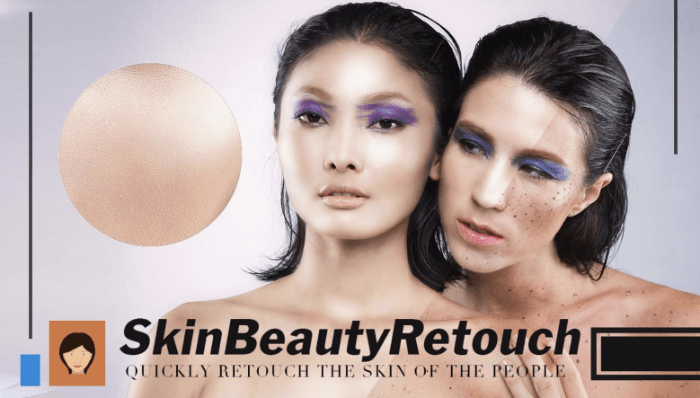
Free Skin Beauty Retouch is a tool panel for smoothing skin. It is available as a free plugin from Adobe Creative Cloud. Start by removing marks with the Spot Healing tool. Then blend away significant blemishes with the Mixer brush.
A single click on the Retouch button and the plugin performs frequency separation. It creates a new layer with softened skin. The layer is masked and ready for you to paint in the areas you want to smooth out.
The results make this one of the best free Photoshop plugins available. The Professional edition gives experts precise control of the skin smoothing process. It’s an affordable upgrade.
remove.bg strips a background in one click, and it has an official Photoshop plugin so you never leave the app to do it. You install the plugin free from Adobe Exchange through the Creative Cloud desktop app, then run it from Plugins > remove.bg for Adobe Photoshop > Remove Background.
What earns it a place here rather than a browser bookmark is what comes back. The cutout arrives as an editable layer mask, not a flattened PNG. So you paint a strand of hair back in or soften an edge exactly as you would on a Photoshop mask you built by hand.
That matters most on the subjects that eat an afternoon. Hair, fur, and semi-transparent fabric are where the AI earns its keep, and where the plugin gets you to a usable photo composite in seconds. Version 2.3.1 needs Photoshop CC 2021 (22.0) or newer, on Mac or Windows.
The cost sits in the processing, not the download. Signing up gives you one credit plus 50 free API calls a month for preview-size images, capped at 0.25 megapixels (roughly 625x400 pixels). Full-resolution cutouts spend credits. So this is the wrong pick if you batch hundreds of product shots. Buy a credit pack for that, or choose a plugin with a flat licence.
ON1 NoNoise uses AI (artificial intelligence) to remove your images' noise and artifacts. It makes them cleaner and sharper. An easy slider control system shows almost real-time previews of your changes.
There are controls for removing luminance and color noise. There is also intelligent sharpening control. The latter produces results without halos or edge artifacts. You can use masking to combine many layers of the same image with varying levels of noise reduction.
As well as working as a standalone app, ON1 NoNoise can be purchased in a bundle with their other plugins (Effects, Resize AI, and Portrait AI). You can try the plugins for free with a 14-day trial.
ParticleShop is a professional brush pack that plugs into Photoshop on both Windows and Mac. You can use the brushes to add stunning effects to your photos!
There are 11 dynamic brushes. They let you paint with complex speckles and smears that produce 3D results. These are a few of the brush styles included:
- Debris
- Fabric
- Fine Art
- Fur
- Hair
- Light
- Space
- Smoke
- Storm
The particle brushes react to your tablet’s pen pressure. This changes the size, spread, and intensity. It also works with a touchscreen or mouse.
ParticleShop’s website has an array of extra brush packs covering all types of painting styles, textures, and light effects. The plugin works with Photoshop, Lightroom, Photoshop Elements, Corel Draw, Corel PaintShop, and Corel AfterShot.
Sometimes stock images can be helpful when you're creating composites. Using stock images means you don't have to go out and take that shot you need. The Free Stock Search 2 plugin lets you search and download free stock images without leaving Photoshop. You can search Unsplash, Pixabay, Pexels, Dreamstime, Adobe Stock, and Shutterstock.
Free Stock Search lets you save the files to your computer for future work. Images can be downloaded in four file sizes from small to original.
You can download Free Stock Search 2 directly from the Adobe Creative Cloud app for MacOS and Windows, and it needs Photoshop 2021 or newer. The free edition searches everything, but it can still return paid Adobe Stock results even when you have not picked Adobe Stock as a source. The Pro edition is a one-time payment that stops that, and it adds vectors and stock video.
Retouching Toolkit is an Adobe Photoshop plugin that’s great for portrait photographers. But it's also for anyone who wants to touch up their photos. The plugin promises to simplify your editing process and give you a professional set of tools.
You can download different bundles at varying prices. There are a variety of panels. Some improve your workflow. Others let you create your own custom panels, fine-tune color adjustments, and more.
This Photoshop plugin is pricey. But it can be a reasonable investment if you're a professional retoucher. Professional photographers appreciate the customizable toolbars. And they like to create one-click commands and actions to save time editing.
Nik HDR Efex merges a bracketed sequence into one HDR image without leaving Photoshop. It is part of DxO's Nik Collection 9, and it runs as a Photoshop plugin, an Affinity plugin, or as a standalone app on MacOS and Windows.
You do not need brackets to use it. Feed it a single frame and it tone-maps that instead, which is the quickest way to lift a flat landscape shot without wrestling with curves.
The reason to choose it over Photoshop's own Merge to HDR Pro is local control. U Point control points let you adjust exposure and contrast in one part of the frame with no mask to draw, and Nik 9 adds AI masks and depth masks that select by subject or by distance from the camera. Start from a preset, then push it as far as you want, from natural to full AI-powered drama.
It is the least casual pick in this section. DxO sells HDR Efex inside the full Nik Collection rather than on its own, so you are buying seven plugins to get one. Take the free trial first, and skip it altogether if you only merge brackets a few times a year.
Topaz Photo is the plugin to reach for when a file needs more than Photoshop's own sliders can give it. It upscales, denoises, sharpens, and rebuilds faces using AI models that render locally on your own machine.
Send a layer to it from Photoshop's Filter menu and it comes back repaired. The model set covers Denoise, Sharpen, Upscale, Super Focus, Dust & Scratch, Recover Faces, Adjust Lighting, and Balance Color, so one trip through it often replaces three or four separate rounds of editing.
It is the obvious partner to a noise reduction workflow on high-ISO frames, and it is the best tool here for old scans that would otherwise be unusable. It also runs standalone and plugs into Lightroom Classic, Capture One, and Apple Photos, so it does not lock your archive inside Photoshop.
The catch is the billing. Topaz has moved to subscriptions and lists no one-off licence, so you rent Topaz Photo on its own or take the Topaz Studio bundle that carries every Topaz app. Local rendering is unlimited, but it is slow without a capable GPU. If you only clean up the odd frame, ON1 NoNoise further up this list is the cheaper answer.
The 4 Best Photoshop Effects
Let's look at Photoshop effects you can download and use to add excitement to your photos.
10. Photoshop Neural Filters
| Free or Paid |
Free or Paid
Free
|
| Type of Product |
Type of Product
Effect
|
| Key Features |
Key Features
Built into Photoshop, with a rotating Beta tab of new filters
|
| Best For |
Best For
Portrait retouching, colorizing, and restyling with no plugin to install
|
Neural filters are non-destructive creative filters powered by AI, and they are the only entry on this page you do not have to install. Adobe builds them into Photoshop itself, which makes them the cheapest way to test whether an effect is worth paying a third party for.
The finished set covers portrait retouching, colorizing black and white frames, removing JPEG artifacts, and complete image restyling. Smart Portrait changes facial expression and lighting. Style Transfer takes the texture, color, and style of a sample image and applies it to your selected layer.
Adobe keeps a Beta tab beside the finished filters, and what sits on it changes from release to release. Treat anything there as an experiment rather than a production tool. Several filters also process in the cloud, which means they need a connection and they run slower than a plugin working on your own machine.
You find them under Filter > Neural Filters, and they work on both MacOS and Windows.
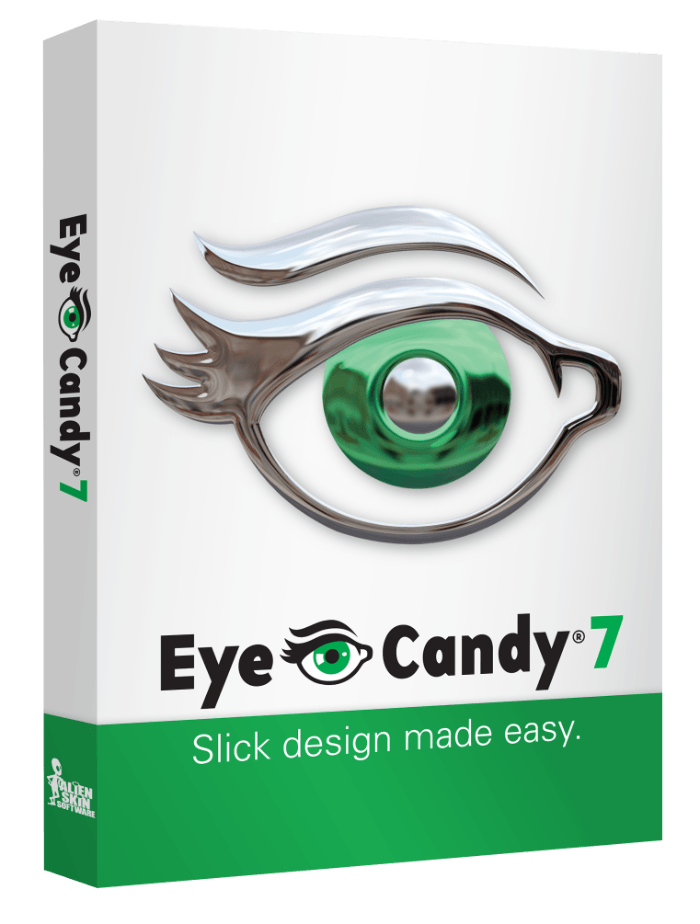
Eye Candy 7 renders texture into your Photoshop documents. You can apply Eye Candy textures, from lightning to animal fur, to your image.
Each effect has built-in presets that you can fine-tune in the edit window. The effect is applied to your selected layer, just like the filters built into Photoshop.
Luminar Neo is a full-featured photo editing program available for MacOS and Windows. The standalone app lets you manage, edit, and export your photos. But it also works as a filter in Photoshop.
Select the layer you want to process and go to Filter > Skylum Software > Luminar Neo. Your layer is then opened in a Luminar window. This allows you to edit with creative filters and AI-driven controls.
Replacing a sky or giving an image a whole new look takes just a couple of clicks. When you’re done, the layer in Photoshop updates with your changes. You can save your edits as presets to apply them to future images. This gives your photos a consistent look and feel.
Brusheezy offers hundreds of free textures that you can use in photography and design projects. You usually get a ZIP file filled with images or PSD files. You can then import these into Photoshop and do whatever you like with them.
Most of the textures need attribution. If you want to use them in commercial projects without giving credit, you need to buy the files. You can buy a subscription comparable in cost to similar website subscriptions. Or you can buy a few credits to buy a specific amount of images.
The 5 Best Photoshop Actions
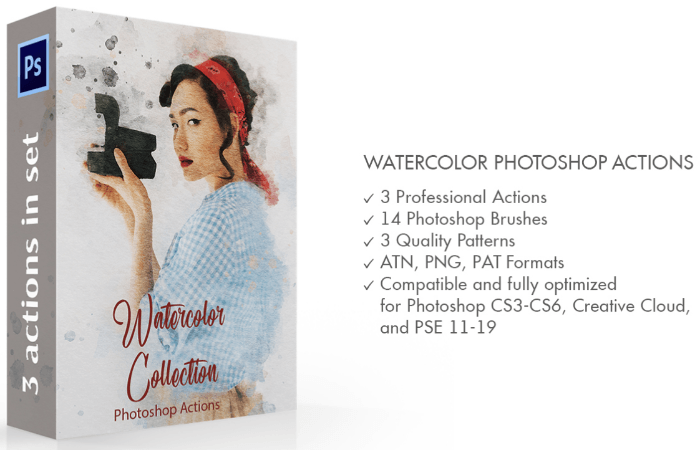
Watercolor Painter is sold through the Skylum store on FixThePhoto. It turns your photos into beautifully rendered watercolor art.
The package consists of three Photoshop actions, 14 watercolor brushes, and three patterns, and it runs in Photoshop CS5 and newer. Once you run the action, you can use the included watercolor brushes to blend your image within the paint effect.
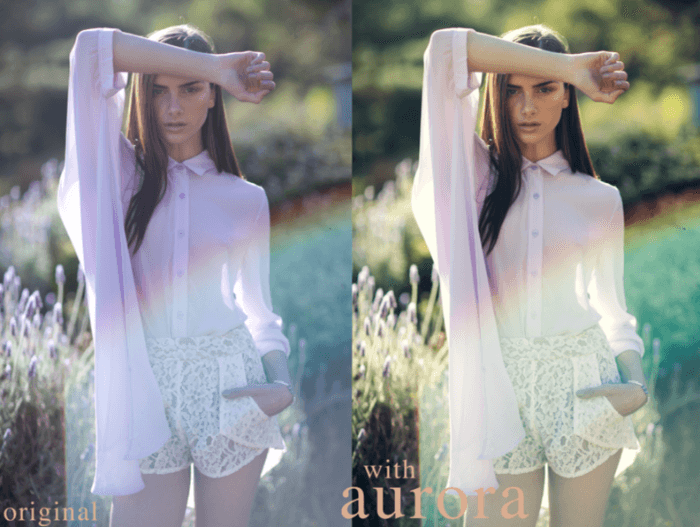
Aurora is a free Photoshop curve from Julia Trotti of Digital Film Actions. Curves are handy tools for enhancing the colors in your photos, and this is an easy way to experiment with different color styles.
Julia Trotti is one of the most popular Photoshop Curves artists, and she offers several more Curves for free alongside Aurora. It downloads as a plain ZIP file with no email sign-up in the way.
To load your curves:
- Go to Image > Adjustments > Curves.
- Click on the cogwheel icon on the top right and select “Load Preset.”
- Double-click your curve file.
The only disadvantage of Curves is that you need to load them every time you restart Photoshop. You can't save them permanently. So make sure you never delete the Curve files in your folder.
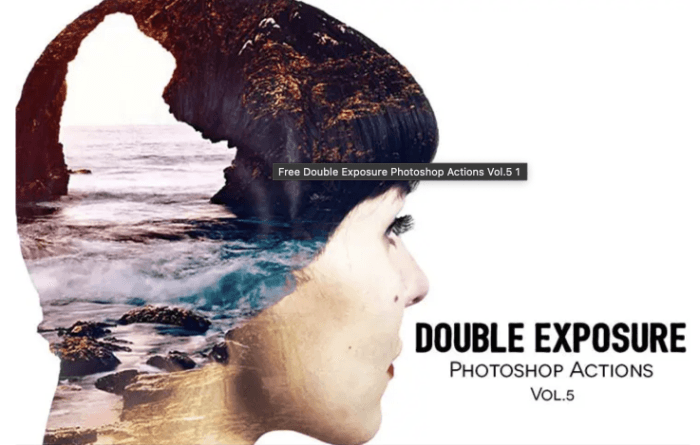
Free Double Exposure PS Action is a free Photoshop action. All you need to do is download the action file and load it into Photoshop. A single click will transform simple photos into stunning double exposures.
Double exposures are usually made up of at least two different photos. You might have seen them in advertisements, conceptual images, or movie posters. They're great for showing emotion in your photos.
The action file comes with installation instructions if you need some extra help.
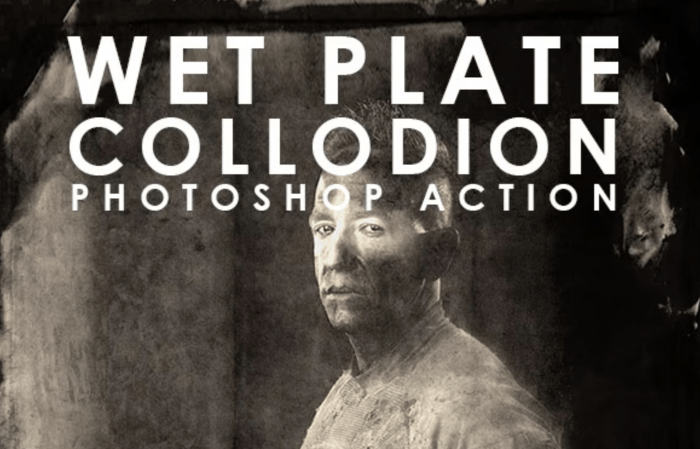
Wet plate photography is a time-consuming and expensive photo technique. This Photoshop action promises to recreate the wet plate effect.
The action will make your photos look old and glassy. You can play around with 14 textures and 12 color effects.
You can buy the action in Envato Market. Compared to other actions on the website, Wet Plate Collodion is one of the less expensive options.
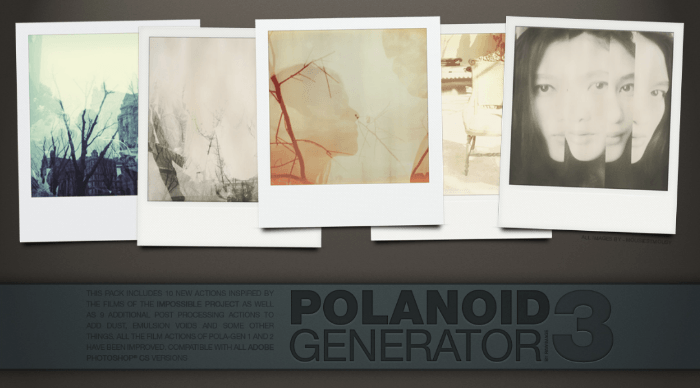
This is one of the best Polaroid generators out there. It will transform any picture into an authentic-looking Polaroid within seconds.
The action is entirely free, but you have to join DeviantArt to download the file. You also have to credit the owner when you share your results online under a Creative Commons license. Version 3 is the one most links point at, but the artist links a newer Version 4 from the top of that same page. Check that before you download.
What Are Photoshop Plugins?
Photoshop Plugins are third-party pieces of software that interact with and control Photoshop. They can perform specific tasks like smoothing skin in a portrait or offer complex tools for masking and working in 3D.
There are hundreds of Adobe Photoshop plugins and effects out there to improve your photos. You can find plugins for all Adobe products in the Creative Cloud app. Just go to “Stock & Marketplace” and select “Plugins.”
Some are free to download and use, and some you have to pay for. Some standalone apps also work as plugins within Photoshop. Topaz Labs, ON1, and Skylum are just some of the companies that include a Photoshop plugin version when you buy their software.
What Are Photoshop Effects?
Photoshop has a range of built-in filters and effects. These generally apply a set look to your selected layer rather than give you the extra controls that a Photoshop plugin does.
You can find effects under the Filter menu and in Layer > Layer Style. Some third-party software will also appear in your Filter menu. This adds complex effects outside of what Photoshop can already do.
Layer styles are applied to your selected layer in the Layers panel. You can double-click the layer style effects at any time to make adjustments to your changes.
Effects applied through the Filter menu are applied directly to the layer. So it's a good idea to duplicate the layer you want to enhance first. Working non-destructively with Photoshop layers means you can always revert to the original image.
What Are Photoshop Actions?
A Photoshop action is a recorded list of edits using filters, effects, and plugins. Actions are an incredibly powerful tool for making a lot of changes very quickly, and for trying creative Photoshop ideas you would never sit through by hand.
Go to Window > Actions. Select any action you like and click on the Play icon. The action will do all the work for you. Some actions also come with instructions and extra tools.
How to Install and Open a Plugin
To install a plugin, download it and follow the instructions. When you install a plugin from the Creative Cloud, it will appear in your Plugins panel within Photoshop. Go to Plugins > Plugins Panel. If you have downloaded a plugin elsewhere, you may need to unzip it. Then follow the installation instructions that came with it.
Either way, once your plugin is installed, you will find it in your Plugins panel in Photoshop. To open a plugin, just click on its name in the list.
Conclusion: The Best Photoshop Plugins
Photoshop plugins, effects, and actions are potent tools. They extend the ability of Photoshop's already vast range of controls. Creating unique and custom images has never been more accessible. Installing Photoshop plugins equips you with editing tools specific to your creative style.
We think the best free Photoshop plugin is Free Skin Beauty Retouch. Its one-click process makes editing portraits super quick and easy. And we feel the best plugin is ON1 Effects for its sheer range of control and abilities. Together, these two Photoshop plugins can help you take your work to the next level!
Are you looking for ways to create unique compositions and tell fantastic stories? Check out our Fantastic Photo Adventures video course to learn how to use Photoshop in simple but effective ways.