

To edit photos, start with a clear goal and a safe copy of your original. Crop and straighten the image, correct white balance, adjust exposure and tones, then refine color and any areas that need separate attention. Finish with noise reduction, gentle sharpening, a before-and-after check, and an export for the intended use.
This photo editing tutorial takes you through those decisions in order. You can follow the workflow with a JPEG from your phone or a raw file from a camera. The controls differ between apps, so specific Adobe instructions below name Lightroom, Lightroom Classic, or Photoshop rather than treating them as the same program.
1. Choose a Photo and Decide What to Improve
Start with one photograph. If you have several similar frames, compare them before editing. Look at the expression, composition, and focus on the part of the image that matters most. A sharp, well-timed frame is a better starting point than one that needs a major rescue.
Name the problem you want to solve: a tilted horizon, an orange color cast, a dark face, or a distracting branch at the edge. Then decide how the finished picture should feel. A natural portrait and a moody landscape need different choices.
You can find inspiration in other photographers' lighting and choice of color. You do not need a fixed editing style before you learn the basics. Try one change at a time, compare it with the original, and keep what helps your photograph.
2. Preserve the Original and Understand Your File
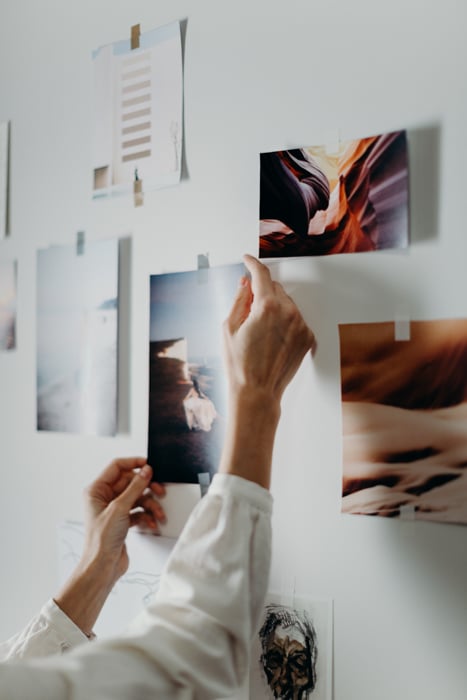
Keep the original file and a backup before you start. If your editor can overwrite an image, work on a duplicate and save your result under a new name. A folder called Originals and another called Exports can help you keep the two apart.
A raw file gives you more flexibility for substantial exposure and color changes than a camera JPEG. A JPEG already contains the camera's processing, including white balance, contrast, and sharpening. You can still edit it; make smaller changes and watch for banding, noise, or unnatural color.
Raw is not a guarantee of unlimited recovery or an uncompressed file. A bright area may look blank in the initial preview yet contain usable information in the raw data. But no exposure slider can restore detail that was never captured. Sharpening cannot turn missed focus into a properly focused photo either.
For future shoots, consider raw versus JPEG and your storage needs. If your camera supports raw + JPEG, you can keep a ready-to-share JPEG alongside the raw file. You do not need to retake your existing JPEG photos to learn this workflow.
3. Open the Photo in One Editor
Use an editor you can learn well. Begin with crop, white balance, brightness, color, and export controls. You do not need to move through several programs to finish your first picture.
Lightroom Classic is the desktop app with a Develop module. Lightroom has a different desktop interface and mobile apps. On Lightroom desktop, tonal adjustments are in Light and white balance is in Color. On Lightroom for iOS and Android, open a photo and use Edit > Light or Edit > Color. Instructions for the Classic Develop module do not describe the mobile interface.
Photoshop desktop is useful when you need layers or detailed retouching. Use adjustment layers for tone and color changes rather than repeatedly changing the original image layer. Keep an editable working file as well as your exported copy. Adobe's nondestructive editing guide explains this approach.
The original software examples include GIMP, RawTherapee, Canva, Fotor, and Darktable. We tried these out ourselves. For more on those examples, read this article on free photo editors.
The original screenshots in this article show earlier interfaces. Use the named controls in the current instructions; their position may differ from the screenshots.
4. Crop and Straighten the Picture
Crop your photo to remove distractions or improve the placement of the subject. The original example of a tree branch in a corner is a useful test: does cutting it out make the image clearer, or does the crop remove something important too?
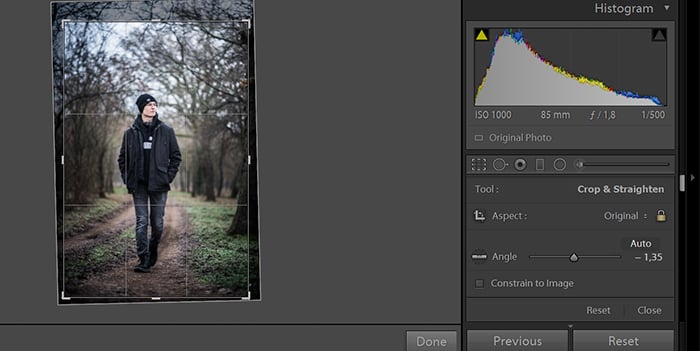
Straighten an unintentionally tilted horizon before judging the final crop. In Lightroom Classic, open the photo in Develop and select Crop. Set the crop boundary, then use Angle in the Crop & Straighten controls to rotate it. Adobe's Classic crop guide shows the current controls.
Choose an aspect ratio for the intended display or print, rather than assuming one ratio fits every use. Leave space around hands, heads, and other important details. Cropping removes pixels from the output, so check that a tight crop still has enough detail for its final size.
5. Correct the White Balance
White balance controls the overall color cast. Temperature shifts the image between cooler blue and warmer yellow tones. Tint adjusts the green-to-magenta balance. Correct an unwanted cast before adding a strong color treatment.
Try the white balance eyedropper on a neutral gray area, or a white area that still has visible detail. Avoid a blown-out highlight or a surface that only looks white because of colored light. Check skin, foliage, and other familiar colors after sampling.
In Lightroom mobile, choose Edit > Color, then use the White balance selector or Temp and Tint. Adobe documents these controls for both iOS and Android.
You can also adjust white balance on a JPEG, but the camera has already applied its original choice to the pixels. Raw offers more room to change it. A neutral result is a starting point, not a rule that sunsets or candlelit scenes must look colorless.
6. Set Exposure, Highlights, Shadows, and Contrast
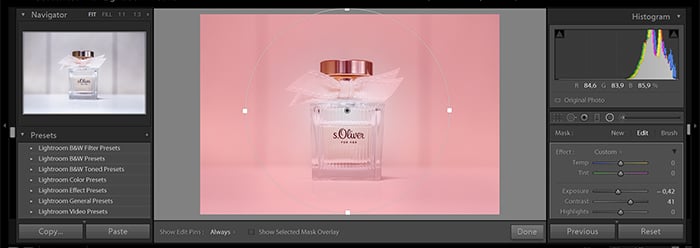
Adjust the overall brightness first, then look at the light and dark parts separately. In Lightroom desktop, use the Light panel. In Lightroom Classic, start with the tone controls in the Develop module's Basic panel.
- Exposure: Set the overall brightness. Judge the subject, not just whether the whole frame looks bright.
- Highlights: Reduce overly bright areas when usable detail remains.
- Shadows: Lift dark areas enough to show the details you want. Stop if noise becomes distracting or the scene loses its depth.
- Whites and Blacks: Set the brightest and darkest tones. Check important details as you move either slider.
- Contrast: Adjust the separation between lighter and darker tones after the basic brightness is close.
For example, if a portrait has a dark face and a bright sky, a large global Exposure increase may make the sky worse. Set a reasonable overall exposure, then use a local correction for the face in step 9.
Use the histogram and clipping warnings where available, but do not try to force every photo into the same histogram shape. A white background and a night scene should not look identical. If a bright patch stays featureless after lowering Exposure and Highlights, further darkening it does not create the missing detail. Adobe's Camera Raw tone guide explains clipping.
7. Refine Color and Try a Style
Once brightness and white balance are close, decide whether the colors need more or less intensity. Saturation changes the overall color intensity. Vibrance gives more attention to muted colors, but you should still inspect skin and already vivid areas rather than relying on it to prevent every problem.
For a specific color, use a color mixer where your editor provides one. Hue changes the color, Saturation changes its intensity, and Luminance changes its brightness. In Lightroom mobile, these controls are under Edit > Color > Mix. Our HSL sliders guide explains the terms in more detail.
Keep the original suggestion to experiment with warmer or cooler looks. Make a separate version if you want to compare a strong treatment with a natural one. A preset can be a useful starting point, but check exposure, white balance, and skin tones after applying it.
If you want to get a basic idea of what to adjust at first, use free presets in your images. When adding presets, you can see how they are operating and which sliders get adjusted. You can use these to learn how to adjust the images in your own way.

8. Check Lens Distortion and Perspective
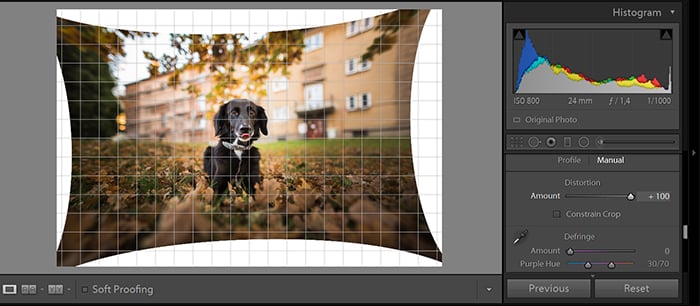
Look for bowed lines or unwanted leaning buildings. Lens distortion and perspective are different problems: distortion can bend a straight line, while tilting the camera can make parallel verticals appear to converge. A wide-angle view does not need to be corrected simply because it looks dramatic.
Use lens and perspective controls only when they improve the picture. In Lightroom Classic, lens distortion controls and the Transform panel address different parts of this job. Adobe's retouching guide explains the correction controls.
Choose a reliable reference, such as a building edge or the horizon. You do not have to make every line horizontal or vertical. After a perspective adjustment, revisit the crop: the correction can leave empty edges or cut into the subject.
9. Make Local Corrections Where Needed
Global adjustments affect the whole photo. A local adjustment affects a selected area, such as a dark face, a bright sky, or a distracting patch of background.
In Lightroom Classic, open Masking in the Develop module. Use Brush for an area you paint, Linear Gradient for a gradual change across the frame, or Radial Gradient for an oval area. These current tools replace the older graduated-filter, radial-filter, and adjustment-brush layout described in many older tutorials. Adobe's Classic masking guide gives the current steps.
For the dark-face example, paint a mask over the face, increase exposure slightly, and inspect the edges. Keep the transition soft enough to avoid a visible outline. Toggle the adjustment off and on to see whether it improves the image.
Remove a small dust spot with a healing or cloning tool if your editor provides one. Zoom in to check for repeated patterns, smeared edges, or a patch that does not match its surroundings. You can leave the scene as photographed; removing objects is not a required step.
10. Reduce Noise and Sharpen Gently
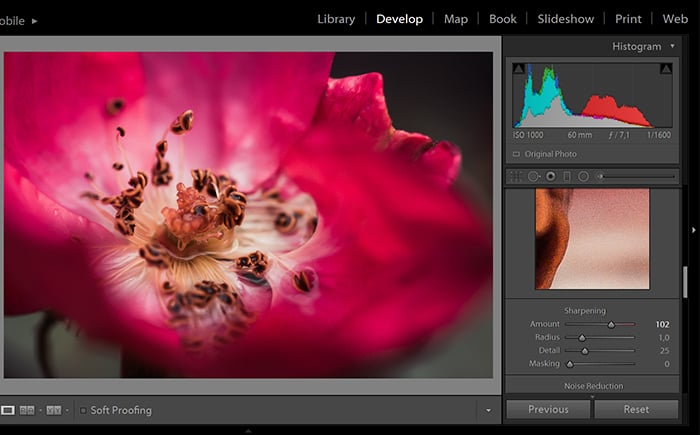
Inspect the important details at 100% magnification. If grain or colored speckles are distracting, try noise reduction before judging sharpening. Use only enough to help: heavy noise reduction can erase texture in hair, fur, or foliage.
In Lightroom Classic, the Detail panel contains sharpening and manual noise-reduction controls. Increase sharpening carefully, then watch for bright outlines around edges and extra noise in smooth areas. Adobe's Detail-panel guidance explains the controls.
Sharpening increases edge contrast; it does not recover a subject that was out of focus. A raw preview may look softer than a camera JPEG because the JPEG already has in-camera processing. That is not evidence that raw capture lost detail.
Do not deliberately oversharpen because you plan to print. Editing sharpening and output sharpening serve different purposes. Finish the image here, then choose suitable output sharpening when you export, and judge a test print when the result matters.
11. Compare the Edit with the Original
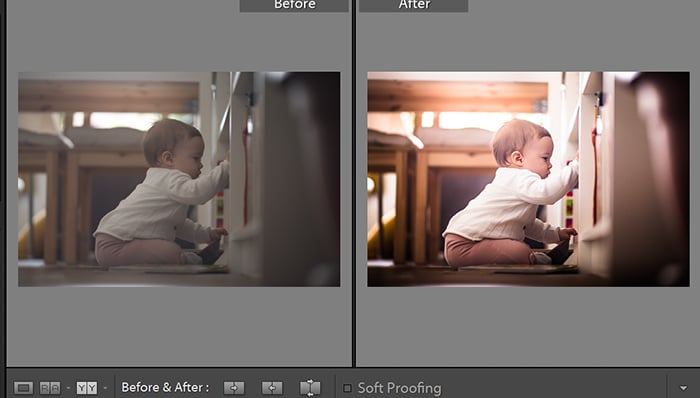
View the photo at normal display size as well as at 100%. Compare the original and edited versions. Has the subject become clearer? Does the light still make sense? Are skin tones believable for the scene? Did a crop remove something you needed?
Look for halos, crunchy edges, flat shadows, intense color, and unnaturally smooth skin. If a change draws more attention than the photograph, reduce it and compare again. A strong creative look can be deliberate, but it should serve your intended result.
Save a version you like before further experiments. As you practice, build a repeatable Lightroom workflow, with consistent file names and separate exports. You can return to style experiments after the basic corrections are sound.
12. Export a Copy for Its Intended Use
Exporting creates the file you will share or print. Keep the original and your editable working version. Check that you are exporting the edited photo rather than choosing an Original option that does not produce the finished appearance you expect.
The commands differ by app:
- Lightroom Classic desktop: Select the photo and choose File > Export.
- Lightroom desktop: Choose File > Export; use Custom Settings for more control.
- Lightroom mobile, iOS or Android: Choose Share > Export as to set format and dimensions.
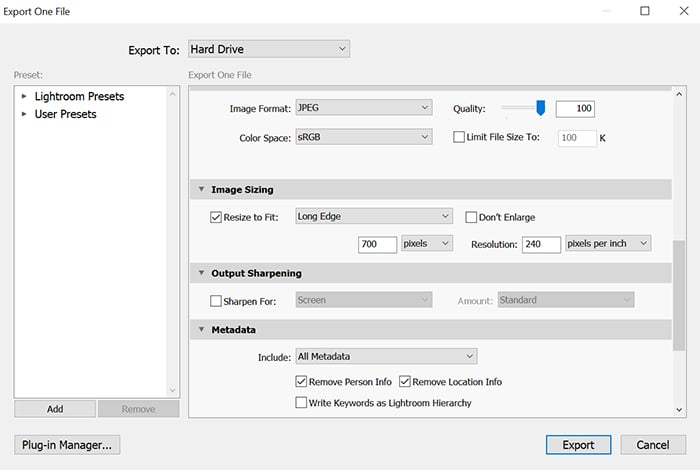
Choose a file format and size for the destination. For an ordinary web or email copy, JPEG with sRGB is a practical starting point. Resize to the site's requirements rather than using one pixel size for every destination. For printing, follow the lab's format, dimensions, and color-profile instructions.
In Lightroom Classic, output sharpening offers Screen, Matte Paper, or Glossy Paper options. This is separate from the Detail-panel sharpening you applied earlier. Do not use a stronger setting automatically; inspect the exported result or a test print.
A layered Photoshop working file and a sharing JPEG have different jobs. Keep the editable master when you may need to change the work later. Repeatedly opening and saving a JPEG can discard more data through compression.
Open the exported file and check its crop, appearance, dimensions, and file name. Our Lightroom export guide, Adobe's Classic export reference, Lightroom desktop reference, and mobile export reference explain the separate interfaces.
Conclusion: Build a Workflow You Can Repeat
Choose one photograph and work through the adjustments with a clear purpose. Protect the original, correct composition and color, balance the light, refine the parts that need attention, and check the final export. You can skip an adjustment that the image does not need.
Once those decisions feel familiar, experiment with a look of your own. A useful edit makes the photograph communicate better; it does not need every slider or the strongest possible effect.
If your goal is to enhance the sharpness of your images using basic editing tools, check out our Effortless Editing with Lightroom course. It also lets you explore photo editing in greater depth and make the best use of the Lightroom workspace.