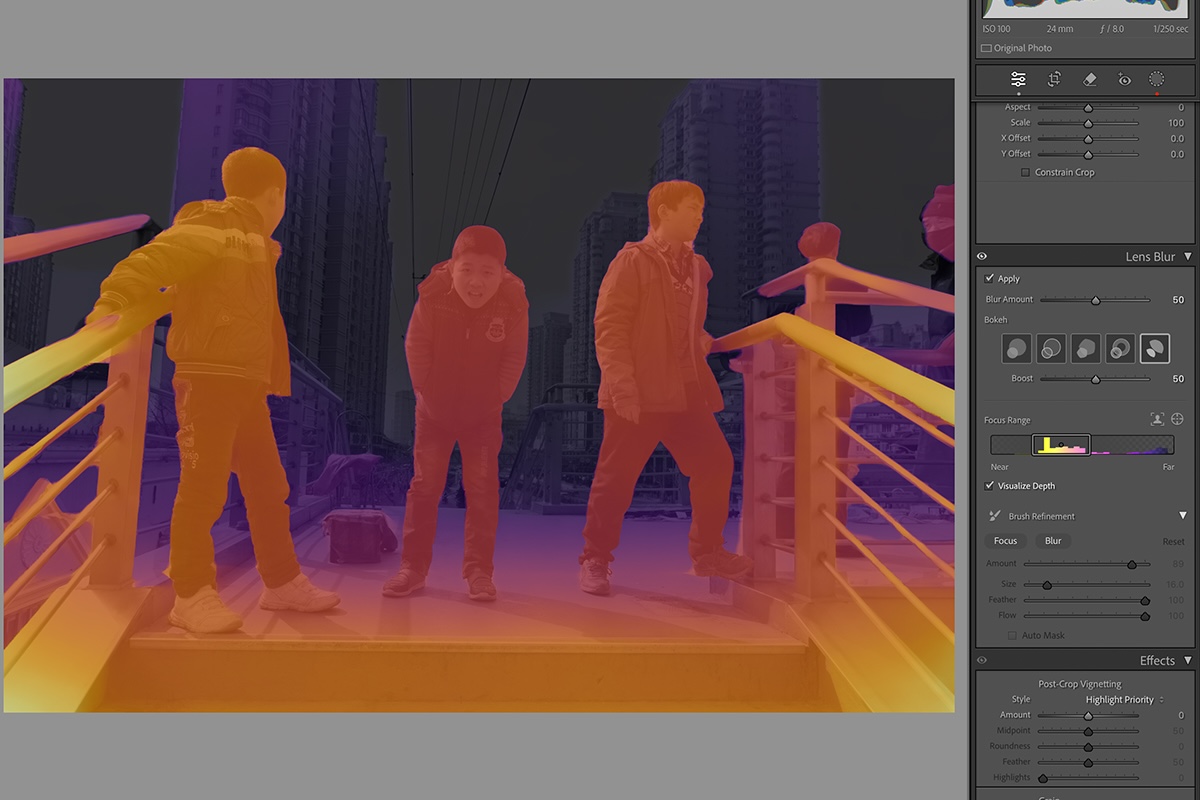
Adobe Lightroom is a great program for photographers. You can find many Lightroom presets. But Lightroom has a lot of limits that can slow you down significantly. This is the kind of situation when Lightroom plugins come in handy.
You can use Lightroom plugins to improve your workflow, enhance your photos, and collaborate with other people. And you don’t even need to leave the program to do all of this!

17 Best Lightroom Plugins
17. Exposure X7

Paid
Exposure X7 is a program of its own, but you can also use its features in Lightroom and Photoshop. It offers 3D color masking, layer effects, bokeh tools, and more. Many of its features are similar to Lightroom’s, but it offers much more control.
This is a great program for photographers who want to experiment with different artistic tools and have more control over the details in their pictures.
Exposure X7 is quite pricey, but it comes with a lot of interesting photo editing features. The X7 Bundle will give you access to photo enlargement, artistic tools, and many other Lightroom plugins.
16. PhotoSafe
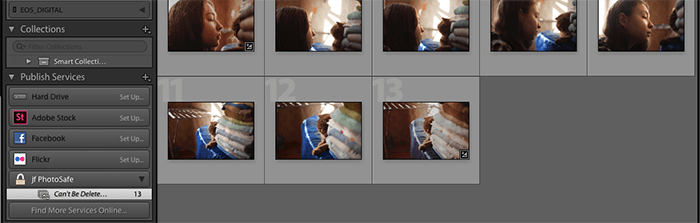
You can find PhotoSafe under Publish Services in the Library module. When you enable it, you can start using the Can’t Be Deleted folder to lock your pictures.
Free
PhotoSafe is one of many Lightroom plugins made by Jeffrey Friedl. It’s a simple but effective tool for photographers with thousands of images.
If you take lots of wedding or event photos that look similar, you might accidentally delete your favourite pictures. This can also be the case if you have a complicated rating system in Lightroom.
To prevent this, you can use PhotoSafe. This plugin will let you select your favourite photos and lock them.
PhotoSafe is free to use, but its functionality will get worse 6 weeks after you download it. You can prevent this by sending Jeffrey any amount of money.
15. The Fader
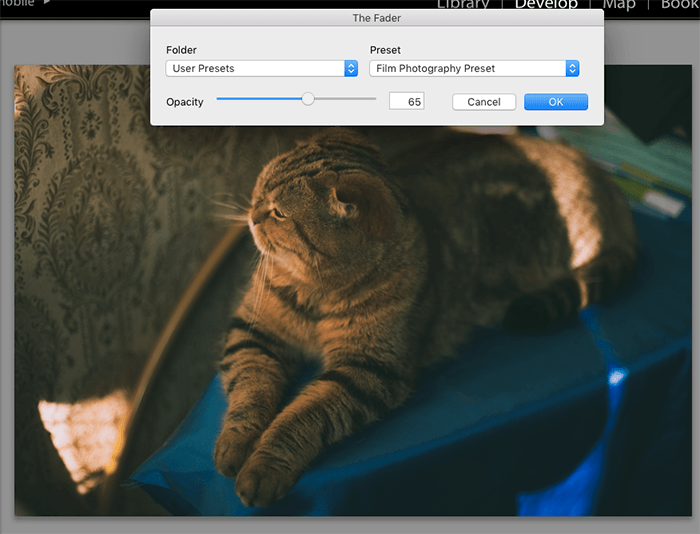
The Fader works very simply. Once you install it, go to File > Plug-in Extras > The Fader. Choose a preset folder and select the preset you’d like to edit. This doesn’t change the Lightroom presets themselves. It simply gives you more control over the intensity of a specific look.
Free
The Fader is one of the most popular Adobe Lightroom plugins out there. If your Lightroom presets are too intense, you can use Fader to change their opacity. Lightroom Classic also has an Amount slider for compatible presets. This is in fact very similar to the Layer Opacity tool in Photoshop.
The Fader is free to download, and a small registration fee through PayPal unlocks it permanently and adds more controls.
One thing to weigh: Capture Monkey has not shipped an update in years. The newest release notes on its site still discuss a Lightroom CC 2015 bug. The plugin still installs and does its one job, but nobody is fixing it if a future Lightroom release breaks it.
14. Topaz Photo

Paid
Topaz Photo is Topaz Labs’ current all-in-one editor. Topaz Labs discontinued Topaz Studio 2, Topaz Lens Effects, and Topaz Clean.
Topaz Photo combines noise reduction, sharpening, upscaling, and face recovery in one workspace. Its Autopilot mode scans each photo and applies the right combination of AI models on its own, but you can still fine-tune every tool by hand if Autopilot gets it wrong.
Topaz Labs has ended perpetual licenses, so Topaz Photo is subscription-only now. You either subscribe to the single app or take the Topaz Studio plan, which bundles it with Topaz Video, Topaz Gigapixel, and the company’s mobile and browser tools.
If you only edited a handful of photos a year with the old one-time-purchase Topaz Clean or Lens Effects, the ongoing subscription may not be worth it for you. A one-time purchase like DxO PureRAW further down this list covers most of the same noise and detail work without the recurring bill.
13. Focus Mask
Free
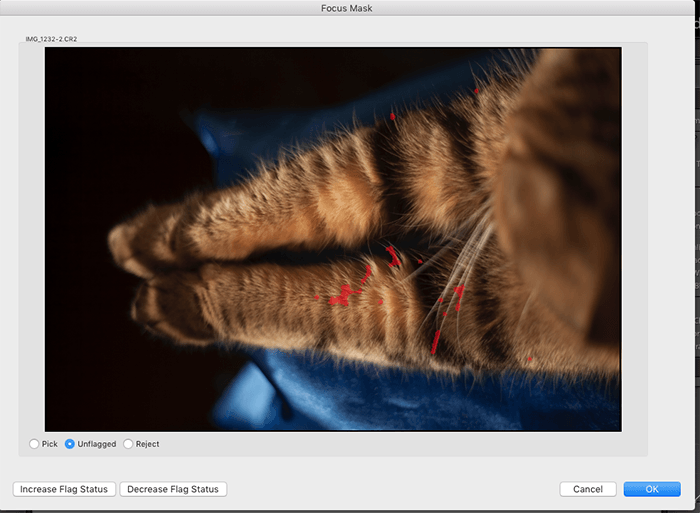
Focus Mask highlights the sharpest parts of your photo using red streaks. This is an easy way to sort through hundreds of similar-looking photos that may or may not be blurred.
Keep in mind that the plugin may highlight sharpness even in blurred images. However, it’s likely that the more redness you see in your image, the sharper it is.
Capture Monkey still labels Focus Mask an early beta built for Lightroom 4 and 5, and it has not been updated since, so treat it as a free extra rather than something to build a culling routine around. It also reads Lightroom’s preview files directly, which means you have to render standard previews first or the mask comes out wrong.
12. Film Stocks

Paid
Film Stocks, now a filter inside the Boris FX Optics suite, offers a huge collection of film presets which you can modify using the filter’s own controls. You can also add different textures to your pictures, such as dust.
The aim of the filter is to make photos look like they were shot on film. Optics ships more than 600 film stocks and film looks, so you can choose from Polaroid, Fuji, and Kodak emulations among many others.
Boris FX no longer sells Film Stocks on its own, so getting it means subscribing to Optics, monthly or annually, and Optics loads inside Lightroom, Photoshop, Capture One, Affinity Photo, and Apple Photos.
That makes it poor value if Film Stocks is the only thing you want from the suite, since you are renting 187 filters to use one. It earns its keep if you also want the lens flares, diffusion filters, and particle effects that come with it.
11. LRTimelapse
Paid
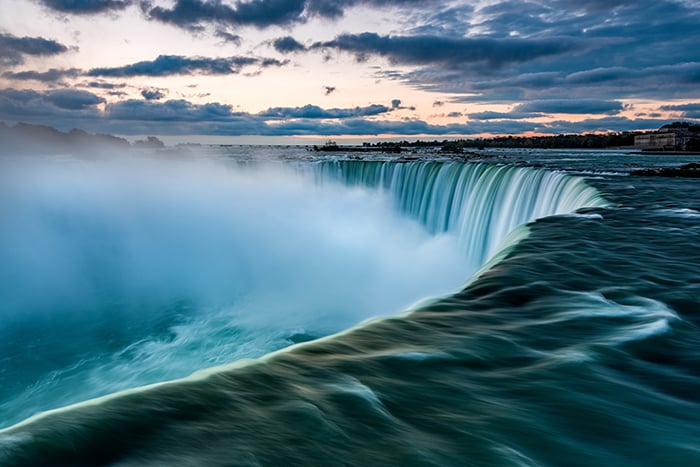
LRTimelapse is one of the most popular time-lapse tools out there. If you want to enhance your time-lapses alongside Lightroom, this program is perfect for you. It runs on its own or with Lightroom Classic, and it promises to help you achieve smooth transitions without ruining the quality of your files.
Photographers can choose between a Pro and a Private license. The Private license is the cheaper option.
10. Portraiture

Paid
Portraiture by Imagenomic is all about skin retouching. If you’re a portrait photographer who wants to save time without making your models look unnatural, you will definitely enjoy using this plugin.
The plugin’s controls are fast and easy to use. You can smooth and enhance even the most problematic skin without losing pores and texture.
Portraiture is one of the most expensive Adobe Lightroom plugins on this list. Imagenomic sells it either as a one-time purchase you own forever or as an annual subscription, and it is cheaper bought inside the Photo Suite alongside Noiseware and Realgrain than on its own. Given its strong reputation and advanced retouching features, many portrait photographers find that reasonable.
9. ON1 Photo RAW

Paid
ON1 is a professional photo editor that comes with hundreds of interesting features. You can use it to organize your photos, process raw files, edit photos in layers, and experiment with special effects.
The plugin also has AI-powered features that can do all the work for you within seconds.
ON1 sells Photo RAW as a one-time purchase you own outright, with a larger MAX edition you can either buy or subscribe to, and an ON1 Photo Studio subscription covering every tool the company makes. Buying the base version outright is the option most photographers want.
8. LR/Enfuse
Free
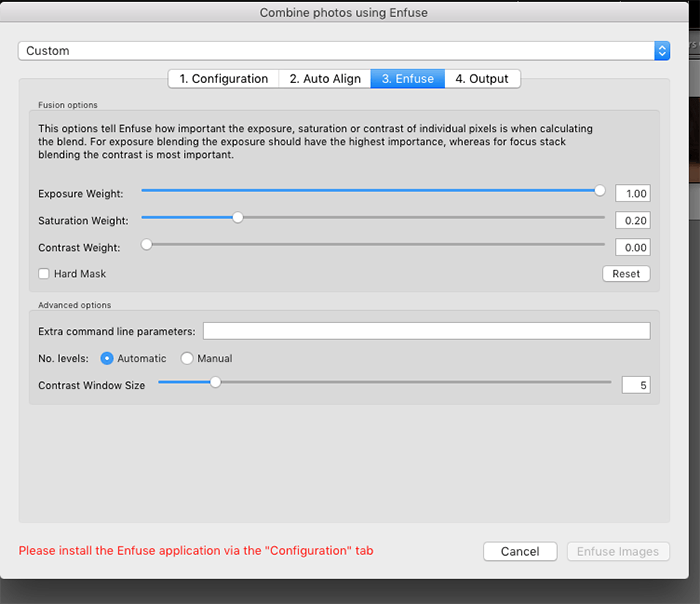
LR/Enfuse is great for photographers who want to merge multiple photos without leaving Lightroom. This is a handy tool for all HDR, macro, and nighttime photographers.
One of its awesome features is that you can blend two images with different focus points to extend the depth of field. You can also use this tool to create a stronger dynamic range in landscape photos.
The plugin is free, but it comes with limitations. If you want to take full advantage of its features, you have to make a donation to the owner.
7. Light

Paid
Invented by Digital Film Tools and now part of Boris FX Optics, Light creates virtual gobos for you.
You can think of gobos as light stencils. If you hold a stencil in front of a light, it will create a pattern. The plugin offers many different patterns you can use to create different atmospheres in your photos.
You can add light to areas without a light source and create your own stencils. Based on the examples, it seems that the plugin is great at creating realistic effects.
Light also offers masking tools, presets, and special light effects, such as fog.
Optics bundles Light with more than 800 gobo lighting patterns, and you can take the subscription monthly rather than committing to a full year.
6. Excire Search 2026

Paid
Excire Search 2026 is an AI-powered plugin for Lightroom Classic that will create automatic keywords for you. Its main feature is a search engine that can help you find any photo you need quickly. You don’t need to tag your photos manually.
You can search by typing a plain description of the shot you want, by similarity to another photo, or by face, and the 2026 version adds culling tools that group photos by scene and check faces for sharpness. It handles video clips as well as stills.
The plugin doesn’t need an Internet connection to work and takes up very little space. You’ll need around 650MB for 100,000 photos, and because everything runs on your own machine, none of your library is uploaded anywhere.
Excire is a one-time purchase, and among the paid Lightroom plugins on this list it is one of the cheaper options. It only works inside Lightroom Classic though, so it is no use to you if you have moved to the cloud version of Lightroom.
5. Export to Flickr

Free
Export to Flickr is another of Jeffrey Friedl’s Lightroom plugins, and it goes a long way past Lightroom’s own Flickr connection. It adds a publish service that pushes photos from a collection straight to your account, then keeps the two in step, so editing a photo later republishes it instead of uploading a duplicate.
If you post your work anywhere outside your own site, this removes the whole export and re-upload loop. You control sets, titles, tags, and privacy from inside Lightroom, and template tokens build your captions out of metadata you have already written.
Friedl keeps these plugins current. The build on his site dates from October 2024, it runs in Lightroom Classic and in versions as far back as Lightroom 3, and the same download covers Windows and Mac.
It is donationware on the same terms as PhotoSafe: free forever, but slightly reduced in function after six weeks unless you register with a one-cent PayPal payment. Be aware that a major Lightroom upgrade de-registers it, so you have to register again each time. And it publishes to Flickr and nowhere else. Friedl has separate plugins for SmugMug, Zenfolio, and Google Photos if that is where your audience is.
4. Evlaa

Free
Evlaa is a collaborative plugin that guarantees to save an hour for every photo shoot you have. Your clients can rate your photos, receive photos directly from Lightroom, and send you payments. You don’t even have to leave Lightroom to do any of these things.
Evlaa is free to download, but you’ll need to pay every month to use its advanced features. A monthly subscription gives you access to unlimited photos, galleries, and users.
3. DxO PureRAW 6

Paid
DxO PureRAW 6 cleans up a raw file before Lightroom ever gets to it. You send images out from Lightroom, DxO processes them, and the finished versions come straight back into your catalog with your edits, metadata, and collections intact.
Reach for this one if you shoot at high ISO or in poor light. DxO’s DeepPRIME processing pulls detail out of grainy frames that Lightroom’s own noise reduction tends to smear. It fixes distortion, colour fringing, and vignetting in the same pass, using optical profiles DxO builds for specific camera and lens combinations.
You buy PureRAW once and own it, with no subscription, and it runs on Windows and macOS. It also drops into Photoshop as a Smart Filter, so you can go back and change the denoising later instead of baking it in.
What holds it back is that it is a preparation step, not an editor. Every photo you run through it becomes a second file in your catalog, so a big shoot doubles your storage. And it only pays for itself on images that genuinely need rescuing. If you shoot mostly at base ISO in good light, Lightroom’s own sliders will get you there without the extra round trip.
2. Blow Up 3

Paid
Blow Up can enlarge photos without ruining their quality. Using simple tools, it will enlarge photos for prints, magazines, billboards, and more.
This plugin can also help you save money if you use stock photos often. You can download smaller ones and enlarge them without compromising their quality.
Blow Up 3 is easier and faster to use than earlier versions, and it supports both Lightroom and CMYK output. It comes as part of the Exposure X7 Bundle mentioned at the beginning of this article, or you can buy it on its own for much less.
1. Luminar Neo
Paid
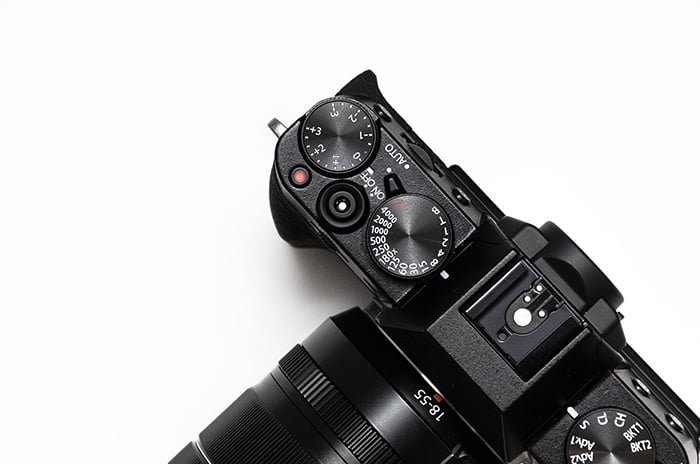
Luminar Neo is Skylum's current all-in-one photo editor. Skylum no longer sells its older Creative Kit apps (Intensify, Tonality, Snapheal, FX Photo Studio, Focus, and Noiseless), and their features now live inside this one program.
Luminar Neo runs as a standalone app for Mac and Windows, or as a plugin inside Lightroom Classic, Photoshop, and Apple Photos. It handles sky replacement, portrait retouching, HDR merging, AI masking, and object removal with AI-driven presets, so you don't need six separate apps to get the results the old Creative Kit promised.
Luminar Neo is a one-time purchase rather than a subscription, in three tiers: Desktop Only for up to two computers, All Platforms to add the mobile app and cross-device syncing, and Max to add a year of Skylum's asset library and courses. One purchase covers what the old Creative Kit apps did across six separate products.
The catch is that the generative AI tools (GenErase, GenExpand, and GenSwap) run on a 365-day licence bundled with the purchase. After that you'll need to renew to keep using them, even though you own the rest of the app for good. If all you want is basic retouching without AI generation, a cheaper single-purpose tool elsewhere on this list may suit you better.
Common Lightroom Plugin Questions
How Do I Use Lightroom Plugins?
Install your Lightroom plugin by going to File > Plug-In Manager and clicking on Add. Find your Lightroom plugin in your folders and click on it. Restart Lightroom. Your plugins for Lightroom will now be visible in the program, and you can start using them!
Does Lightroom CC Support Plugins?
No. Lightroom CC does not support third-party plugins. But you can send a photo to apps such as Luminar and ON1 Photo RAW with its Edit in command.
Where Are Lightroom Plugins Stored?
Lightroom plugins are stored in folders of your choosing. Once you install your Lightroom plugins, make sure you don’t delete the folder where they are stored. If you do, it will immediately remove the Lightroom plugins from Lightroom. Keep all of your Lightroom plugins in one neat folder before you install them.
Conclusion
Lightroom is great on its own, but it can be turned into an even more powerful program thanks to custom Lightroom plugins. You can use them to enhance your photos, communicate with clients, take advantage of AI-powered features, and much more.
With the right Lightroom plugins, your photography experience will be efficient and successful.